Go and look at your website’s logs. I’ll wait.
See all those requests for /wp-login.php and /xmlrpc.php from countries you’ve never done business with? That’s bots trying passwords, all day, every day. Every WordPress site on the internet gets them.
Here’s my question: why is your login page open to the entire planet in the first place?
Who actually needs to log in?
For most small business sites, the honest answer is: you, maybe a staff member, and your web developer. That’s a handful of people, usually from a handful of places.
Yet by default WordPress lets anyone on earth reach the login form and have a go. Strong passwords and two-factor login help, and you should have both, but they’re the last line of defence. Better to stop the attacker before they even see the form.
The fix: one Cloudflare rule
If your site is behind Cloudflare, you can block the login and admin pages for everyone except trusted IP addresses. It works on the Free plan.
Step 1: Make a list of trusted IPs. In the Cloudflare dashboard go to Manage account → Configurations → Lists and create an IP list (I call mine trusted_ips). Add your office and home addresses. If your home internet has IPv6, add your IPv6 range too, otherwise you’ll lock yourself out the moment your computer prefers IPv6. (More on Lists in my post How to use Lists in Cloudflare.) The Free plan gives you one custom list, so this is a good use for it.
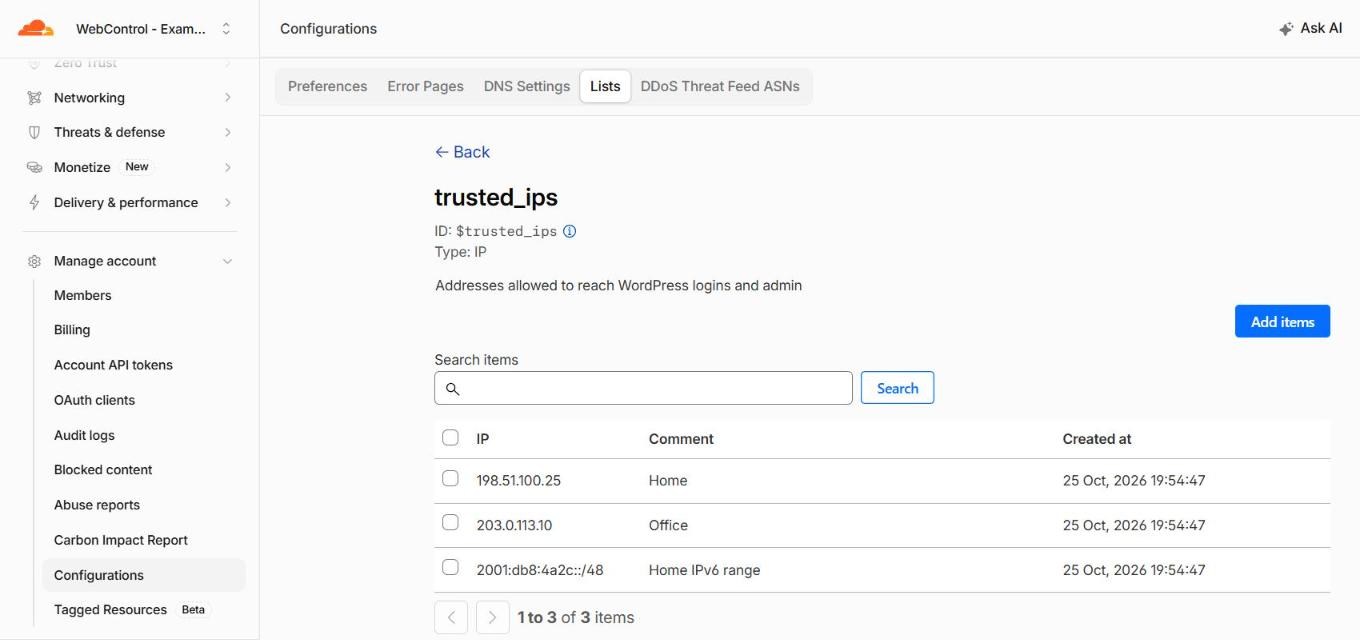
trusted_ips list. These are documentation addresses; yours would be your office and home connections.Step 2: Create a custom WAF rule. In your domain go to Security → Security rules, and under Custom rules click Create rule. Click Edit expression and paste in:
(http.request.uri.path eq "/wp-login.php"
  or (starts_with(http.request.uri.path, "/wp-admin")
      and http.request.uri.path ne "/wp-admin/admin-ajax.php"))
and not ip.src in $trusted_ips
Set the action to Block and deploy.
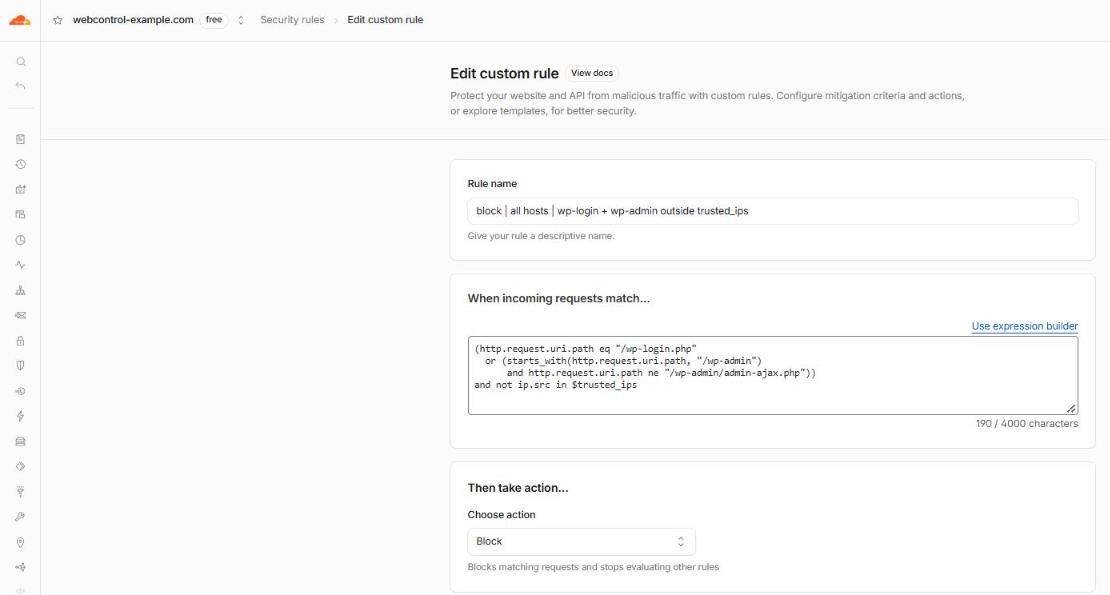
That’s it. Bots now get a Cloudflare block page, and your server never even hears about them.

/wp-login.php.The bit everyone gets wrong: admin-ajax.php
Notice the line that excludes /wp-admin/admin-ajax.php? Don’t skip it.
Despite living in the admin folder, admin-ajax.php is used by the public side of lots of websites. Elementor forms, WooCommerce carts, search boxes and “load more” buttons all post to it. Block it and your contact form quietly stops working for every visitor.
How do I know? Because it happened to us. I wrote the whole story up in Our contact form was silently rejecting customers.
What about xmlrpc.php?
xmlrpc.php is an old remote-publishing interface that bots love because it lets them try lots of passwords in a single request. Unless you use the WordPress mobile app or Jetpack, you probably don’t need it. Add it to the same rule:
(http.request.uri.path in {"/wp-login.php" "/xmlrpc.php"}
  or (starts_with(http.request.uri.path, "/wp-admin")
      and http.request.uri.path ne "/wp-admin/admin-ajax.php"))
and not ip.src in $trusted_ips
Testing it
- From your trusted connection, log in as normal. It should just work.
- Turn off Wi-Fi on your phone and browse to
/wp-login.phpover mobile data. You should get a Cloudflare block page. - Still on mobile data, submit your contact form. It should still go through.
- Check Security → Analytics → Events in Cloudflare after a day. You’ll see exactly how much junk the rule is stopping.
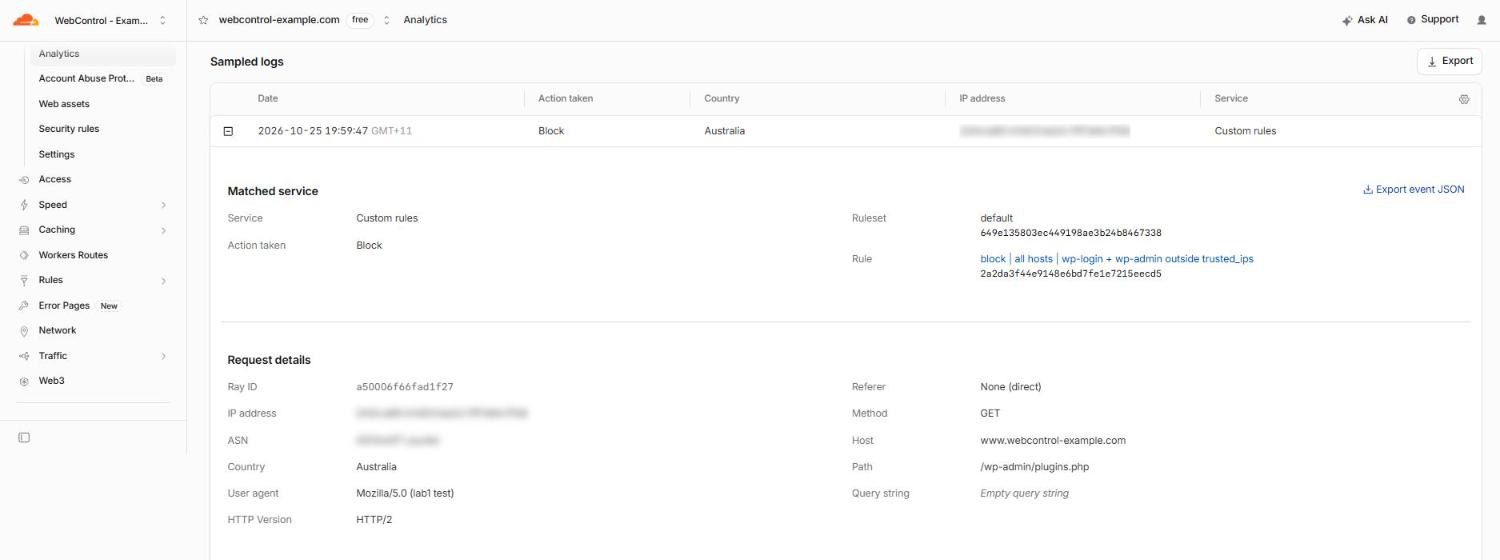
Working away from the office?
If you log in from all over the place, an IP list gets painful. Options:
- Use a VPN with a fixed IP and add just that.
- Use Cloudflare Access (part of Zero Trust, free for small teams) to put a proper login screen with your Microsoft or Google account in front of
wp-login.php. If you do, apply it to the login page only, not the whole/wp-adminfolder. Sameadmin-ajax.phptrap.
Not on WordPress? Same problem
WordPress cops most of the bot traffic because it runs so much of the web, but it’s not special. Every platform has a login page at a well-known address, and the bots know all of them:
| Platform | Where the login lives |
|---|---|
| Joomla | /administrator |
| Drupal | /user/login |
| Magento / Adobe Commerce | /admin, or a custom admin path |
| Ghost | /ghost |
| phpMyAdmin | /phpmyadmin, /pma and friends |
| cPanel / WHM, Plesk | ports 2083 / 2087, 8443 |
| Grafana, Jenkins, Portainer and other dashboards | their own login page, often on a known port |
| Routers, NAS boxes, firewalls | the device’s web admin page |
The fix is exactly the same: only let trusted IPs reach the login. For a site behind Cloudflare, swap the paths in the rule above. For Joomla, for example:
starts_with(http.request.uri.path, "/administrator")
and not ip.src in $trusted_ips
Before you deploy, check whether the public side of your site uses anything in that path, the same way WordPress uses admin-ajax.php. Then run the same tests: log in from your trusted connection, try the login over mobile data, and submit your forms.
Control panels, phpMyAdmin and device admin pages usually shouldn’t be on the internet at all. Close those ports in your server or router firewall, and reach them over a VPN instead.
A quick test for any of them: if you can open your admin login from a coffee shop without connecting to anything first, so can everyone else.
One last thing
This rule only protects traffic that goes through Cloudflare. If someone knows your server’s real IP, they can go around it. Make sure your origin is locked down too.
Want this set up for you? Get in touch. It takes about ten minutes, and it’s one of the best-value security changes you can make.