Updated October 2026. Cloudflare’s Logpush, which sends a log of every request, used to need an Enterprise plan. It’s now available on every plan, with a set amount of log data free each month, so the section on sampled logs has been updated.
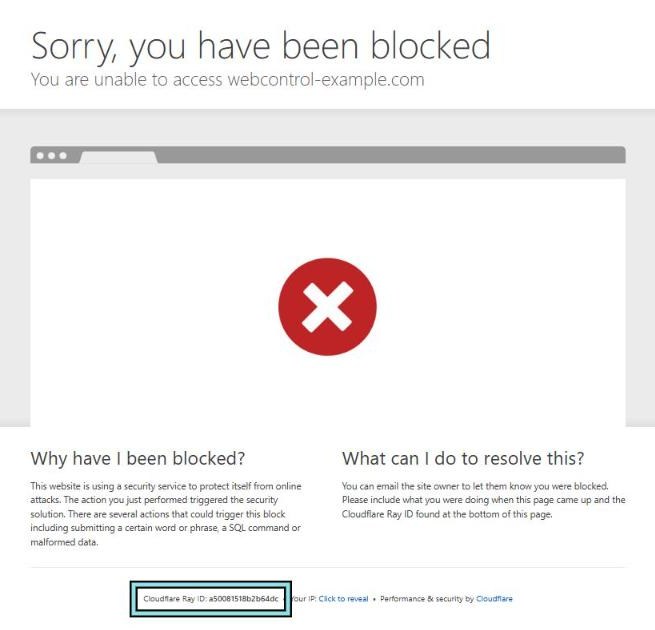
If you’ve ever hit a Cloudflare error or block page, you’ve probably seen a line near the bottom that says something like Cloudflare Ray ID: a50081518b2b64dc. Most people ignore it. Please don’t. It’s the single most useful thing you can send us when something goes wrong.
What a Ray ID is
Every request that passes through Cloudflare gets an identifier called a Ray ID. Think of it as the tracking number on a parcel. Cloudflare passes it on to your web server in a header called cf-ray, and it shows it on its own error and block pages.
With a Ray ID and a rough time, we can go into your Cloudflare dashboard and find that exact request: who sent it, from where, which page they asked for, and which rule or feature acted on it.
Without one, we’re looking for one visitor in thousands of requests, armed with “it didn’t work for a customer sometime yesterday”.
Where to find it
- On a Cloudflare block or error page. It’s printed at the bottom. Take a screenshot of the whole page, including the time if you can see it.
- In your browser’s developer tools. Open the Network tab, click the request, and look for the
cf-rayresponse header. - From the command line.
curl -sI https://www.webcontrol-example.com/ | grep -i cf-raygives you something likecf-ray: a50083477d09e7c2-SYD. The letters after the dash are the Cloudflare data centre that handled the request (SYD is Sydney); the part before it is the Ray ID. - In your server’s logs, if you log the
cf-rayheader. I recommend you do. It lets you match a line in your web server log to the same request in Cloudflare.
One small warning from Cloudflare’s own docs: Ray IDs aren’t guaranteed to be unique. In practice, a Ray ID plus a time is all we need.
Who can look up a Ray ID
A Ray ID only means something inside the Cloudflare account that handled the request. To look one up, you need access to that website’s zone (the domain as it’s set up in that Cloudflare account). That goes for us, and for anyone else.
- If we look after your Cloudflare, we can look up any Ray ID from your website.
- If you run your own Cloudflare account and haven’t given us access, we can’t see it. You can look it up yourself (see below), or add us to your account as a member. A read-only role is enough for this.
- If the block happened on someone else’s website, such as a supplier’s portal or an online shop, neither of us can look it up. Send the Ray ID and the time to that site’s owner. Only they, or whoever manages their Cloudflare, can see what happened.
Cloudflare tells visitors the same thing: if a site blocks you, contact the site’s owner, because their settings decide what gets blocked.
It’s also why a Ray ID is safe to share. On its own it doesn’t give anyone access to anything. It’s a reference number, and only the site’s owner can use it to find the request in their own dashboard.
How to look one up yourself
If you have access to the website’s Cloudflare account, open the domain and go to Security → Analytics → Events. Click Filter, choose Ray ID, paste it in, and set the time range around when it happened.
If the request was blocked or challenged, you’ll see an event with:
- the action (block, managed challenge and so on)
- the service that acted: a custom rule, a managed rule, rate limiting, bot protection
- the rule itself, by name
- the visitor’s IP address, country, user agent and the path they asked for
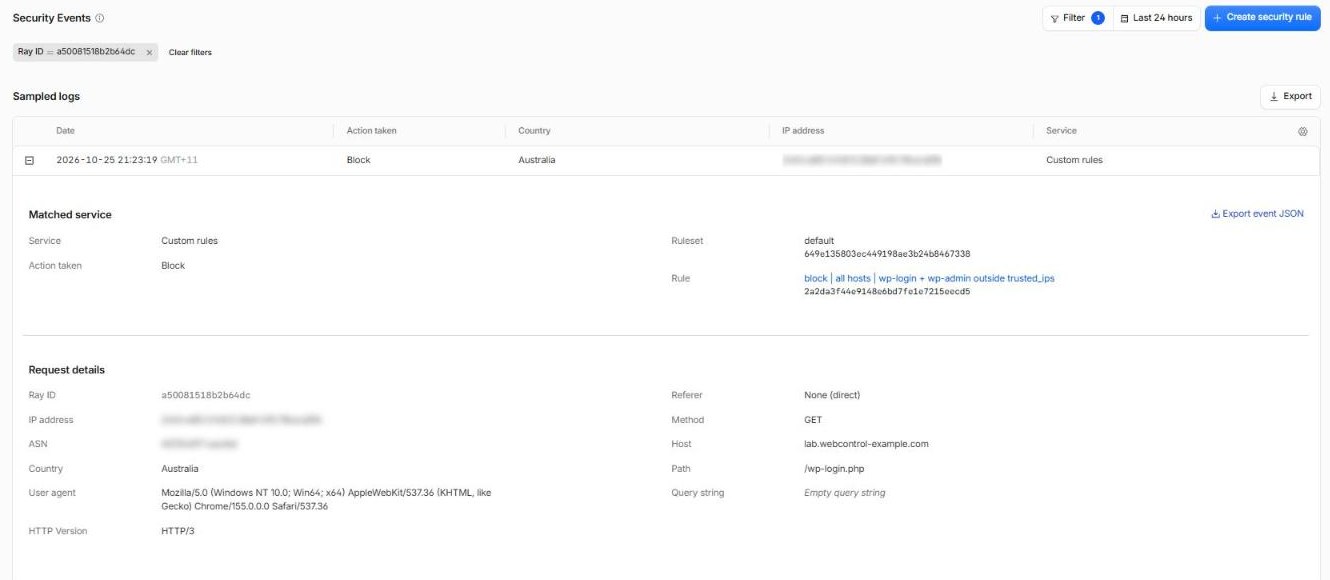
That last bullet is a good reason to give your rules clear names. “block | all hosts | wp-login + wp-admin outside trusted_ips” tells you what happened. “rule 3” doesn’t.
Two things to know before you go looking
Events don’t last forever. Cloudflare keeps security events for up to 31 days on every plan. If a customer tells you about a problem from two months ago, the trail has gone cold. Report problems while they’re fresh.
On smaller plans you’re looking at a sample. On the Free plan, the dashboard shows sampled logs, so on a busy site not every single event appears. Narrowing the time range helps. If you need every request, every time, turn on Cloudflare’s Logpush. It used to be Enterprise-only, but since September 2026 it’s available on every plan. Each Cloudflare account gets a set amount of log data free every month, and Cloudflare charges for anything over that. Logpush sends the logs somewhere you can search them, such as our managed SIEM, so the Ray ID from any customer’s error page can be looked up later.
Also, if there’s no event at all for a Ray ID, that tells you something too: Cloudflare didn’t block it. The problem is more likely on your server, your plugin or your form.
What to send us
When something goes wrong, the perfect support message has:
- the Ray ID (or a screenshot of the error page)
- the date and time, with your time zone
- the web address you were trying to reach
- what you expected to happen, and what happened instead
That’s why, when you contact us about a block or an error, we’ll ask for the Ray ID and the time. We’ll help either way. But with them, a problem that could take an hour of digging usually takes five minutes.
Tell your staff about Ray IDs, too. The person most likely to see a block page is a customer, then a receptionist, not the person who manages your website. “If you see a Cloudflare page, screenshot it” is a five-second training session that saves a lot of time.