Every new firewall rule carries the same risk: it blocks the attackers, and also something you needed. A payment webhook. A customer on a mobile network. Your own contact form.
On Cloudflare’s Enterprise plan you can set a new rule to Log, watch what it would have caught for a week, and only then switch it to Block. On Free, Pro and Business there’s no Log action. Here’s how I test rules safely without it.
1. Write down what should still work
Before you touch the rule, list the things that must keep working. For a typical small business site:
- the home page and main pages, from a phone on mobile data
- every form: contact, quote, booking, newsletter sign-up
- checkout and payment, including the payment provider’s callback (webhook)
- logging in, for staff and for customers
- your uptime monitor
- search engines (Google and Bing)
This is your test list. You’ll run it after every change.
2. Look before you leap
Before creating the rule, open Security → Analytics. The Traffic tab shows all requests, not just the ones a rule acted on, and it’s now on every plan, Free included. Filter on the same conditions your rule will use, such as the country or the user agent, and look at the sampled logs, which list the host and path of each request. You’re asking: who is already sending this kind of traffic?
If your rule will block /wp-login.php for everyone outside Australia, look at who is requesting that path and where from. If there’s a staff member logging in from Bali every week, you’d rather find out now.
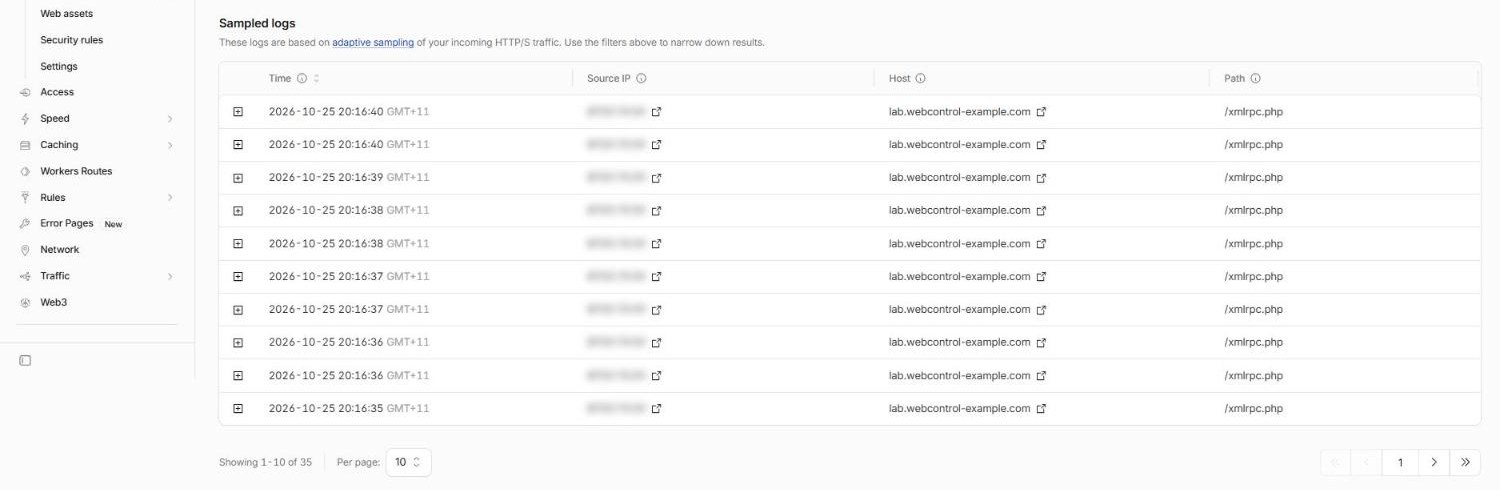
/xmlrpc.php: Security Analytics on a Free plan domain, filtered to POST requests. The sampled logs show who is already sending them. (IP addresses blurred.)The rule editor helps too. As you build the expression, it shows how many requests would have matched it over the last 30 days.
3. Start narrow
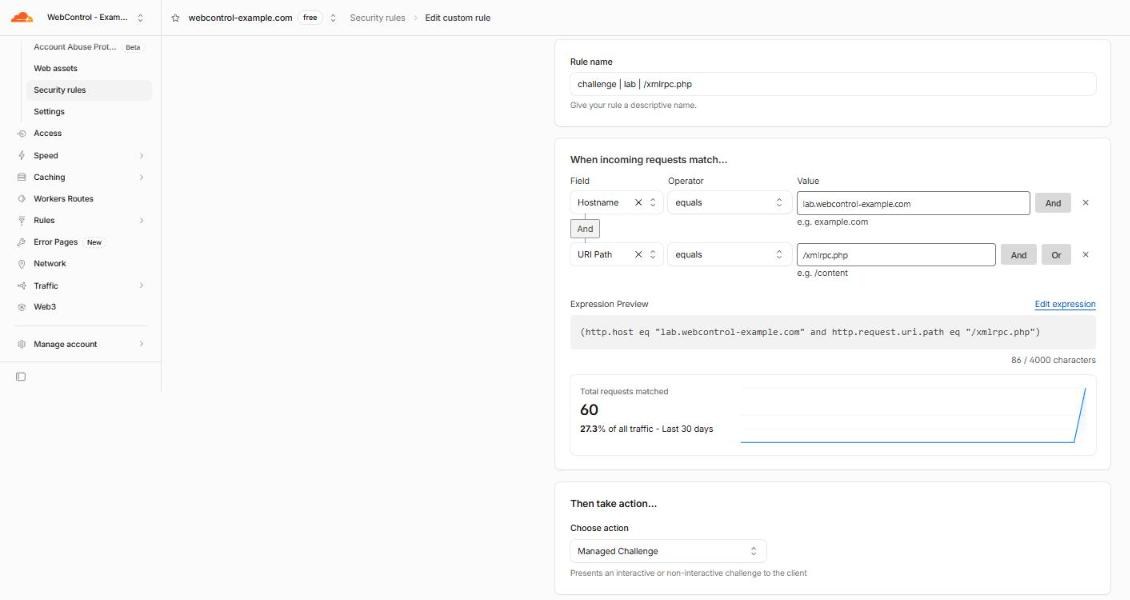
Make the first version of the rule as small as you can:
- One hostname (start with a staging copy of your site, if you have one).
- One path, not the whole site.
- A challenge, not a block. Managed Challenge lets real people through while stopping most bots. If you’ve got it wrong, customers are slowed down, not turned away.
You can widen it later. Widening a rule that works is easy. Explaining to a customer why they were blocked is not.
4. Test it yourself, from outside
Now run your test list. From your own network and from a phone on mobile data, because your office IP may be on a trusted List and skip the rule entirely.
Then try to trip the rule on purpose, to check it actually does something. For a block on /xmlrpc.php:
curl -s -o /dev/null -w "%{http_code}\n" https://lab.webcontrol-example.com/xmlrpc.phpYou want to see 403. A Managed Challenge gives curl a 403 too, because curl can’t solve the challenge. If you see 200, the rule isn’t matching. Check the hostname, the path, and whether a Skip rule above it is letting the request through.
5. Watch the events for a few days
Go back to Security → Analytics → Events, filter by your new rule, and look at what it’s catching. The rules list under Security → Security rules gives a quick summary too: events per rule and, for challenges, the challenge solve rate (CSR). Ask:
- Do these look like real people? Normal browsers, Australian ISPs, sensible pages?
- Is anything you rely on in there: your payment provider, your monitoring, a partner’s server?
- For challenges: how many visitors are solving it? A high solve rate means humans are hitting it.
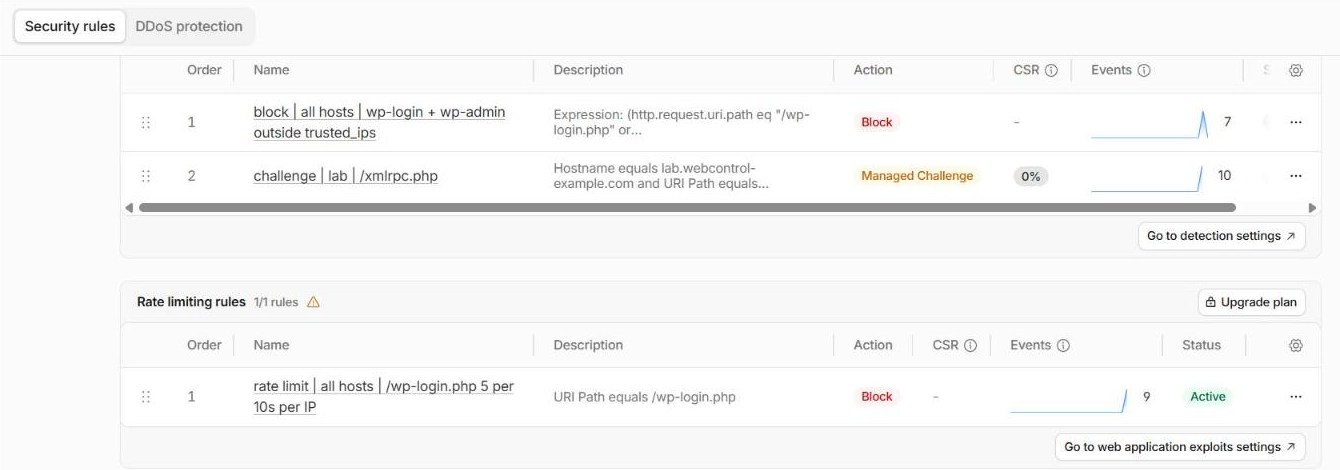
Remember that Free plans show sampled events, and events are kept for 31 days. Check within the first few days, not next month.
6. Then tighten
When you’re happy, switch the challenge to a block if that’s what you want, or widen the scope to more hostnames. Run the test list again after each step.
7. Write it down
Record what you changed, when, and why, in a change log, a ticket or even a shared document. Cloudflare’s Audit Log records who changed what (and keeps it for 18 months on every plan), but it can’t record why. Give the rule a clear name, too: I put the action, where it applies and what it matches in the name, like challenge | www | /wp-login.php outside AU.
Have a way back
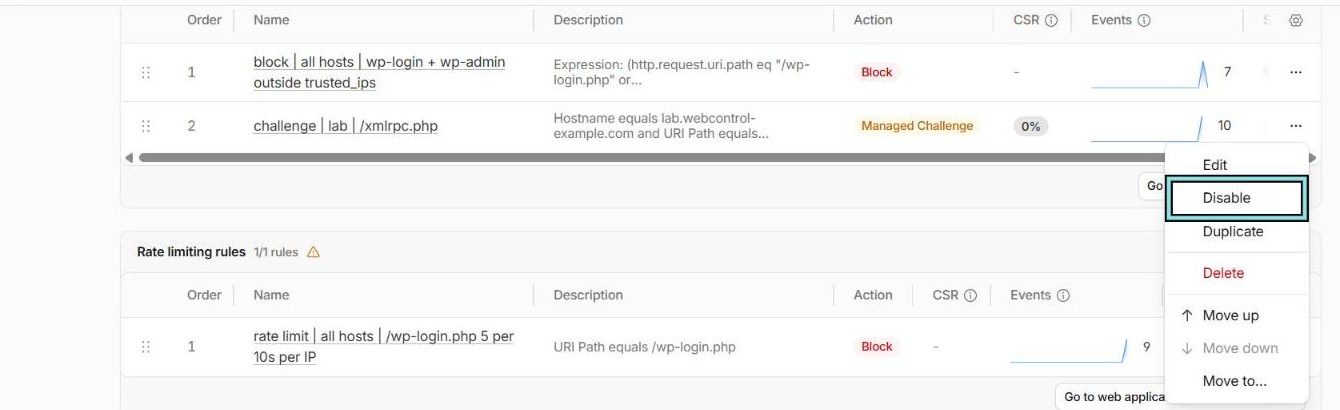
Finally, know how to undo it. Disabling a custom rule is one click, so make sure more than one person knows where that click is. If the person who wrote the rule is on a plane when it starts blocking customers, someone else needs to be able to turn it off.
Want a second opinion on a rule before it goes live? Get in touch.