You put your site behind Cloudflare. The padlock shows up in the browser. Job done, right?
Maybe. It depends on one setting most people never look at: your SSL/TLS encryption mode. Get it wrong and that padlock is only telling half the story.
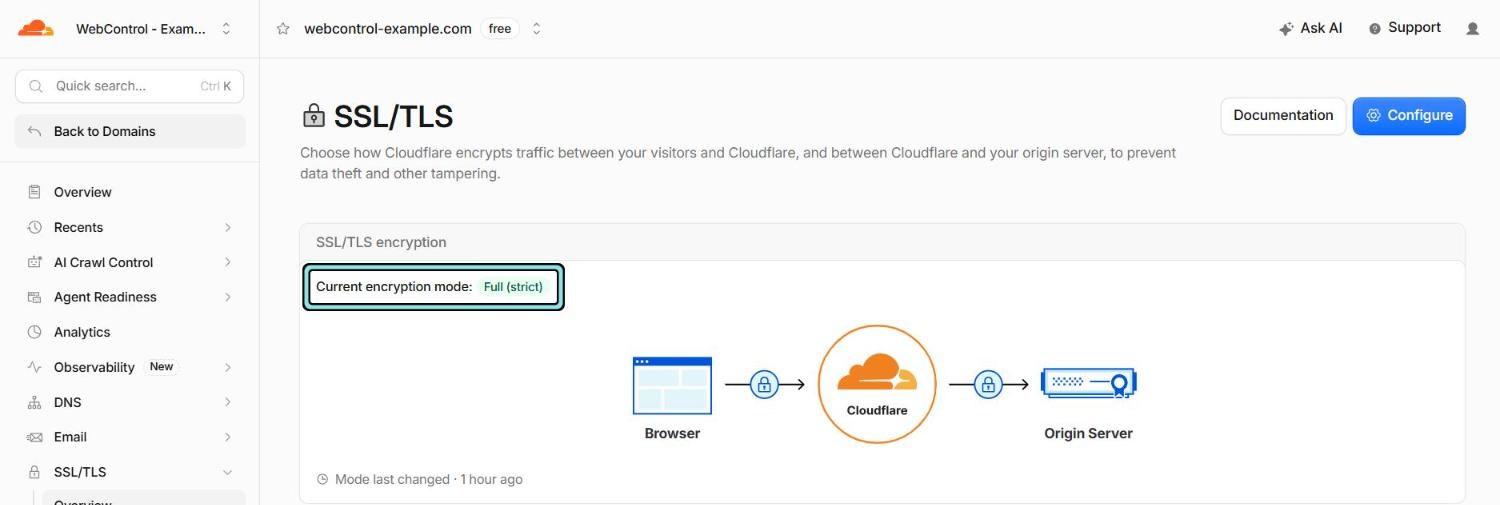
There are two connections, not one
When your site is behind Cloudflare, every visit actually involves two separate connections:
- Visitor → Cloudflare. This is the one the padlock in the browser is about.
- Cloudflare → your server (the “origin”). The visitor can’t see this one at all.
The SSL/TLS mode in Cloudflare (SSL/TLS → Overview) decides how that second connection works.
The four modes
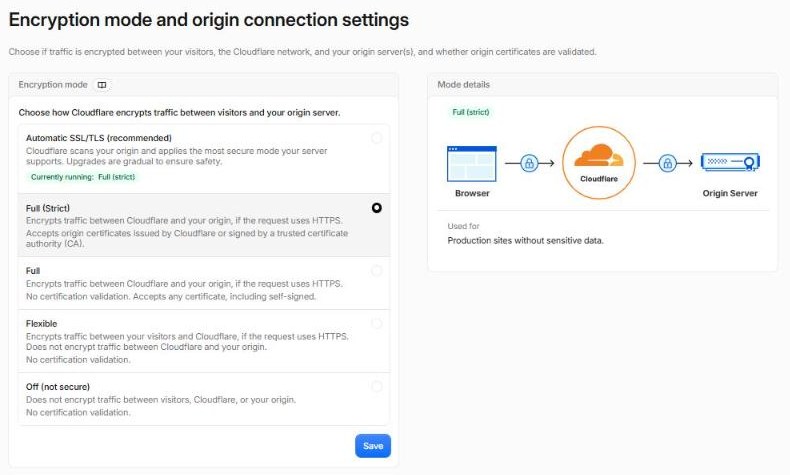
Off. No encryption anywhere. Don’t.
Flexible. Encrypted from the visitor to Cloudflare, then plain unencrypted HTTP from Cloudflare to your server. Your visitors see a padlock, but their form submissions, logins and customer details cross the internet to your server in clear text. It also causes the classic “too many redirects” loop when WordPress tries to force HTTPS. Flexible is a trap. Avoid it.
Full. Encrypted both ways, but Cloudflare accepts any certificate from your server, including an expired or self-signed one. Better, but it doesn’t prove Cloudflare is talking to your server.
Full (strict). Encrypted both ways, and Cloudflare insists on a valid certificate. This is the one you want.
You’ll also see Automatic SSL/TLS at the top of the list. Cloudflare checks your site about once a month and moves it to the most secure mode it thinks your server can handle. It sounds convenient, but we recommend choosing the mode yourself:
- It changes things on its own. The mode can change without anyone touching it. If something breaks afterwards, nobody knows what changed or why.
- It makes one decision for the whole domain. If the domain has several sites on different servers, a mode that suits one may not suit another.
- It won’t save you from an expired certificate. It never steps back down to a weaker mode, so keeping your server’s certificate valid is still your job.
- It hides what’s actually running. A setting that says Full (strict) is easier to check than one that says Automatic.
So once your server has a valid certificate (next section), select Full (strict) yourself rather than Automatic. Cloudflare’s docs call this Custom SSL/TLS. If one site in the domain really can’t do Full (strict) yet, give just that hostname an exception with a Configuration Rule rather than weakening the whole domain.
Getting to Full (strict)
Your server needs a valid certificate. Two easy options:
- A normal certificate such as a free Let’s Encrypt one, which many hosts set up automatically.
- A Cloudflare Origin CA certificate: free, valid for up to 15 years, created in SSL/TLS → Origin Server. It’s only trusted by Cloudflare (browsers will complain if they connect directly), which is fine, because only Cloudflare should be connecting directly anyway.
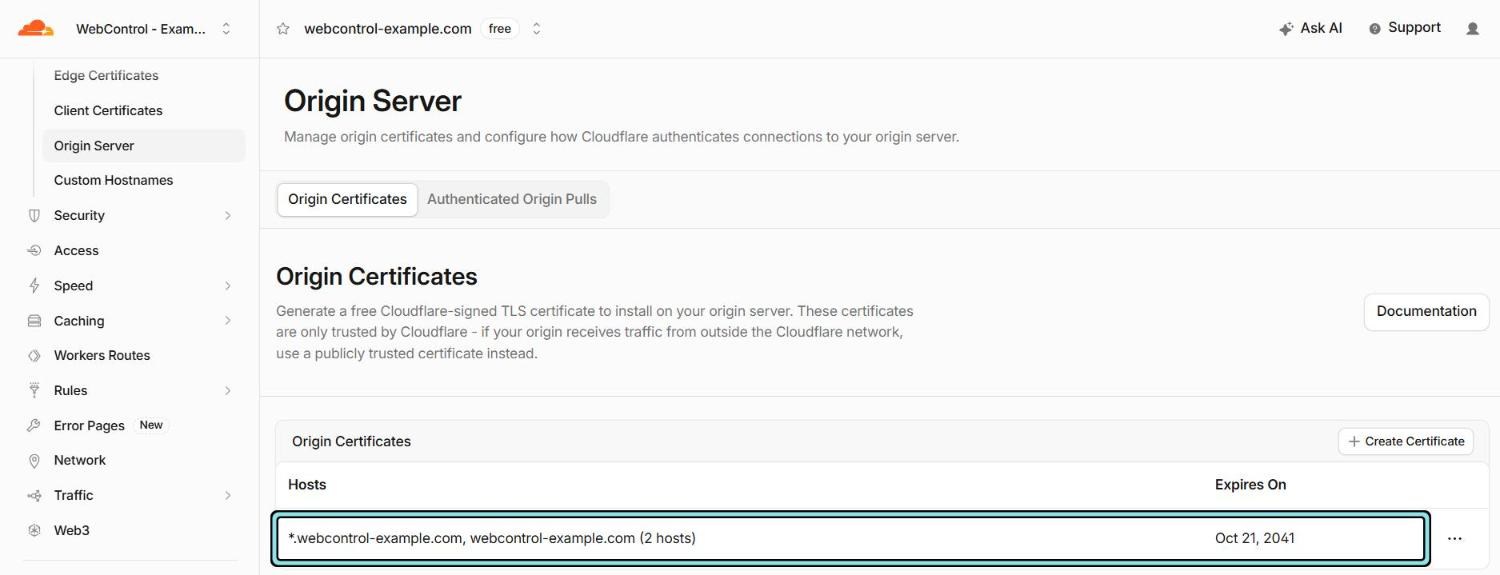
Once it’s installed, select Full (strict) (not Automatic) and test the site. If you get an error 526, the certificate on the server isn’t valid. Fix that before going further.
The next level: Authenticated Origin Pulls
Full (strict) proves to Cloudflare that it’s talking to your server. Authenticated Origin Pulls does the reverse: it proves to your server that the request really came from Cloudflare.
Cloudflare presents a client certificate with every request, and your web server is configured to refuse any connection that doesn’t have one. Someone who finds your server’s IP and tries to connect directly simply gets turned away, even before your firewall rules come into it.
One important detail: Cloudflare offers this three ways, under SSL/TLS → Origin Server → Authenticated Origin Pulls.
- Global uses a certificate Cloudflare shares across all its customers. Easy to switch on, but in theory anyone with a Cloudflare account could point their own domain at your server and pass the check.
- Zone-level uses your own certificate for the whole domain.
- Per-hostname also uses your own certificate, but set one hostname at a time.
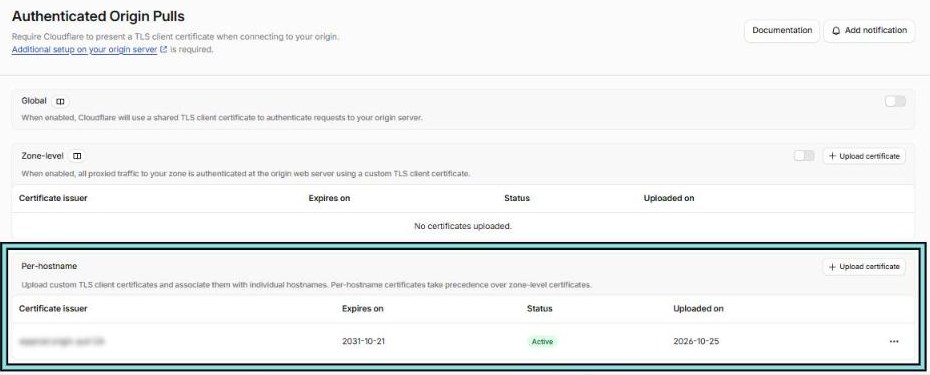
Skip Global if you can. The real choice is between the other two, and it comes down to how many sites live in the domain.
For the whole zone: zone-level
Upload one certificate and switch on the Zone-level toggle. From then on, Cloudflare presents that certificate on every proxied request in the domain: webcontrol-example.com, www.webcontrol-example.com, shop.webcontrol-example.com and anything you add later.
This is the simplest option and a good fit when the domain is really one site, or when every hostname points at the same server. One certificate, one switch, nothing to remember when you add a subdomain.
The catch is that it’s all or nothing. Every site in the domain gets the same certificate, and when that certificate is renewed or replaced, every site changes at once. If the domain has several sites on different servers, one mistake can take all of them down together.
One site at a time: per-hostname
With Per-hostname, you upload a certificate and turn it on for named hostnames only, say www.webcontrol-example.com. Per-hostname settings take precedence over zone-level ones for the hostnames they cover, and the levels are configured separately, so you can mix them.
This is the safer choice for a domain with several sites:
- Roll out one site at a time. Set up the first server, test it, then move on to the next. Sites you haven’t reached yet carry on as before.
- Each server can have its own certificate. A renewal or a mistake on one server affects that site only.
- Leave out what you can’t change. A hostname pointing at a service you don’t run, like a hosted shop or help desk, can simply stay out of it.
It takes a little longer to set up, because each hostname is its own job. For most small businesses with more than one site under a domain, that’s a fair trade.
Switching it on without locking yourself out
Whichever level you choose, do it in this order. It’s the order Cloudflare’s own setup guides follow.
- Upload your certificate to Cloudflare (zone-level, or per-hostname for the hostname you’re starting with).
- Set your web server to accept the client certificate but not require it yet (in nginx,
ssl_verify_client optional;). - Turn on Authenticated Origin Pulls in Cloudflare for that zone or hostname.
- Check your server’s logs to confirm requests are arriving with a valid certificate.
- Only then make the server require it (in nginx,
ssl_verify_client on;). - Test from outside Cloudflare: a direct request to your server’s IP should now be refused.
Switching it on in Cloudflare only makes Cloudflare present the certificate. Nothing gets turned away until your server is told to require it, so step 5 is the one to be careful with. Cloudflare can also email you 30 and 14 days before the certificate expires; turn that on under Notifications.
Ideally, every site you run behind Cloudflare ends up with Authenticated Origin Pulls on. Per-hostname is just the gentler way to get there. We use per-hostname with our own certificates on our servers, combined with Full (strict) and a firewall that only accepts Cloudflare’s IP ranges. Each layer covers for the others.
Quick checklist
- SSL/TLS mode is Full (strict), selected by you, not Automatic or Flexible.
- Your server has a valid certificate (public or Cloudflare Origin CA).
- Always Use HTTPS is on (SSL/TLS → Edge Certificates).
- Authenticated Origin Pulls is on with your own certificate: zone-level for a single-site domain, per-hostname when the domain has several sites.
- Your server’s firewall only accepts web traffic from Cloudflare. See How to lock down your origin server behind Cloudflare.
Not sure which mode you’re on, or nervous about flipping the switch? Get in touch and we’ll check it with you.