Most attacks on small business websites aren’t clever. They’re just a lot. Thousands of login attempts, a bot scraping every product page, someone hammering your quote form, a script requesting your search page as fast as it can. Each request on its own looks normal. It’s the volume that hurts.
That’s what rate limiting is for.
What a rate limiting rule does
A rate limiting rule says: “If the same visitor sends more than X requests matching this, within Y seconds, do something about it for Z seconds.”
For example: if one IP address sends more than 5 requests to the login page in 10 seconds, block it for 10 seconds. A real person typing a password never gets close. A bot trying a thousand passwords a minute hits the wall immediately.
In Cloudflare, rate limiting rules sit under Security alongside your custom rules, and they run after custom rules and before managed rules.
What you get on each plan
| Free | Pro | Business | Enterprise* | |
|---|---|---|---|---|
| Rules | 1 | 2 | 5 | Set by contract |
| Count per | IP address | IP address | IP address (with NAT support) | Same as Business; the add-on adds cookies, headers, ASN and more |
| Counting period | 10 seconds only | 10 seconds to 1 minute | 10 seconds to 10 minutes | 10 seconds to about 18 hours |
| Block for | 10 seconds only | 10 seconds to 1 hour | 10 seconds to 1 day | 10 seconds to 1 day |
| Actions | Block only | Block or challenge | Block or challenge | Block, challenge or log |
| Match on | Path, verified bots | Adds host, URI, query | Adds method, IP, user agent | Adds request headers; the add-on adds the request body |
*Enterprise doesn’t include rate limiting by default. It comes with application security on your contract, and the number of rules depends on that contract. The extra ways of counting and matching need the Advanced Rate Limiting add-on.
That’s from Cloudflare’s documentation and dashboard at the time of writing. Limits do change, so check the current docs before you plan around them.
What happens on a match. You choose one action for the rule:
- Block (every plan): the visitor gets a
429 Too Many Requestserror by default, for as long as the block lasts. On Free that’s always 10 seconds. - Challenge (Pro and up): a Managed, Non-Interactive or Interactive Challenge instead of a block. Below Enterprise there’s no duration: once the visitor passes, their count starts again from zero. It’s the gentler choice when real people might trip the limit, such as on a busy form.
- Log (Enterprise only): records matches without acting on them, so you can test a rule before it starts blocking.
Where to spend your one free rule
On Free you get one rule, so pick the path that attracts the most abuse and the least real traffic. For most small business sites, that’s the login page:
When incoming requests match:  URI Path equals /wp-login.php
Same characteristics:          IP
Requests:                      5
Period:                        10 seconds
Action:                        Block
Duration:                      10 seconds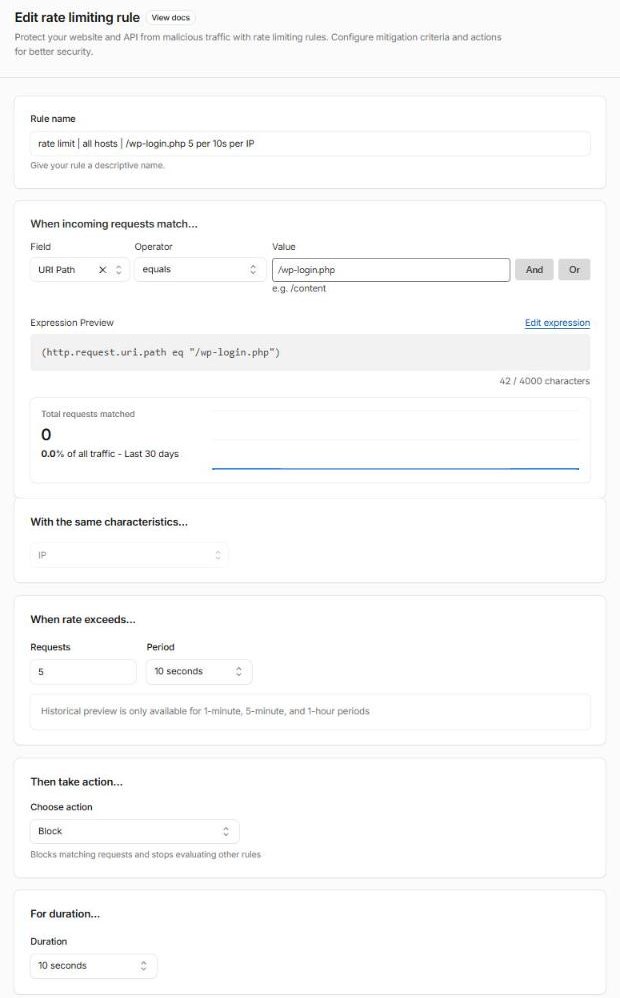
If your login page is already locked to trusted IPs (and it should be), spend the rule on the next thing that gets hammered: your contact form endpoint, your search page or your API.
Good targets for rate limiting
- Login pages of any kind: WordPress, Joomla, your customer portal, your shop’s account page.
- Form submission endpoints, especially ones that send email.
- Search pages, which are expensive for your server to answer.
- APIs and anything with “password reset” or “send code” in it.
Rate limiting works alongside the other tools, not instead of them. A form CAPTCHA like Cloudflare Turnstile stops bots submitting a form at all. Rate limiting catches the ones that keep trying.
Things that trip people up
On Free, one rule covers every hostname on the domain. A rate limiting rule belongs to one domain (a zone, in Cloudflare’s terms), so it never touches your other domains. But Free can only match on the path, not the hostname. A rule on /wp-login.php applies to www.webcontrol-example.com, shop.webcontrol-example.com and staging.webcontrol-example.com alike, and there’s no way to aim it at just one of them. That’s fine when the path only exists on one site, because the others just return a “not found”. It gets awkward when two sites on the same domain share a path and need different limits. If you need a limit for one specific site, Pro adds the hostname to what a rule can match.
Shared IP addresses. An office, a school or a mobile network can put hundreds of real people behind one IP address. A tight limit on your home page will block a whole office. Keep limits on specific, low-traffic paths, and be generous.
Your own tools. Uptime monitors, backup plugins, and anything that calls your site in bulk can trip a rate limit. Check your events after you turn a rule on.
Static files. Don’t count images, CSS and JavaScript. A single page load can request dozens. Limit the expensive paths, not everything.
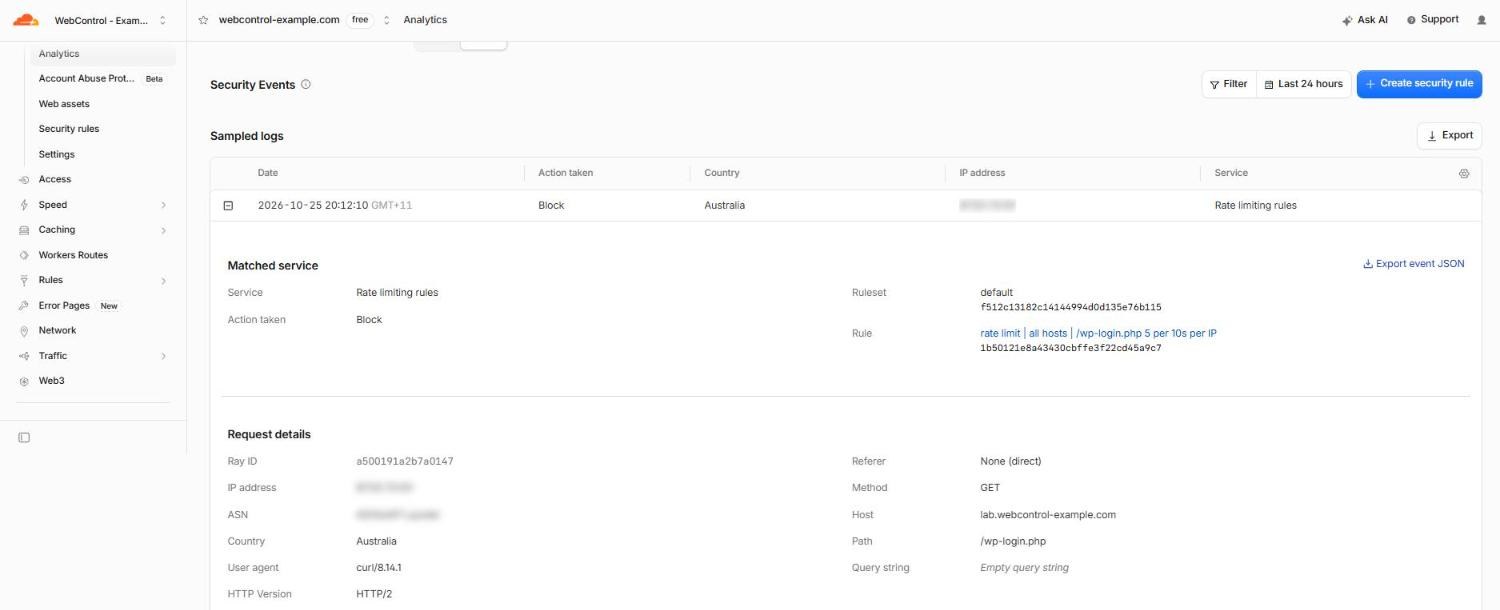
Name it properly. Rate limits are rules too, and they show up in your events by name. Use the same convention as your other rules: rate limit | all hosts | /wp-login.php 5 per 10s per IP: the action, where it applies and what it does. On Free, “where it applies” is always every host on the domain, so say so.
Test it. Run a quick loop of requests against the path from outside your network and check you get 429 responses once you cross the limit. Here’s the rule above being tested from a server outside the trusted list:
for i in $(seq 1 8); do
  echo "$i $(curl -s -o /dev/null -w "%{http_code}" https://lab.webcontrol-example.com/wp-login.php)"
done
1 200
2 200
3 200
4 200
5 200
6 429
7 429
8 429
Five requests get through, and the sixth hits the limit. Ten seconds later it lets that IP address in again. The blocks show up in your events with the rule’s name, so you can see exactly what it caught. I go through safe testing in How to test a new WAF rule without locking out customers.
Not sure where your rate limits would do the most good? Get in touch.