
Updated October 2026. I first wrote this in 2025. Since then I’ve rebuilt our own servers from scratch with everything below, so this version is a lot more hands-on.
You’ve put your website behind Cloudflare. You’ve switched on the WAF, written a few firewall rules, maybe blocked a country or two. Your site is protected now, right?
Only if every visitor actually goes through Cloudflare. If someone knows your server’s real IP address, they can skip Cloudflare entirely and talk to your server directly. Every WAF rule, rate limit and bot check you set up is simply ignored.
It’s like fitting a deadlock to the front door and leaving the back window open. Most passers-by won’t notice. The ones who are looking for a way in will.
Origin lockdown closes that window: your server (the “origin”) only accepts traffic that comes through Cloudflare, and nothing else.
There are several ways to do it. Restricting by IP address is the quickest place to start; the steps below build on it.
How your origin IP gets out
“Nobody knows my server’s IP” is rarely true. The usual leaks:
- DNS history. If the site existed before you moved it to Cloudflare, sites that record old DNS answers still have your original IP. Sites like DNS History show a lot more than most people expect.
- Grey-cloud records. Any DNS record that isn’t proxied (grey cloud instead of orange) shows its real IP to anyone who asks. A forgotten
ftp.,cpanel.ordev.record on the same server gives the game away, because these records often point at the same server as the website. - Mail. If your email is sent from the web server, the server’s IP is in the headers of every message you send, and often in your MX or SPF records too. A quick
nslookupof your MX or SPF record is all it takes. - Internet-wide scanners. Services like Shodan and Censys connect to every IP address on the internet and record the certificate each one presents. If your server hands out a certificate for
www.webcontrol-example.comwhen they connect tohttps://<your IP>, anyone can search for your domain and find the IP behind it (Step 3 fixes this). - The website itself. Plugins that make requests back to your own server, error pages, or a stray link with the IP in it. A contact form that emails a confirmation to whatever address the visitor types in is a classic: the attacker enters their own address and reads your server’s IP in the email headers. WordPress pingbacks do something similar, getting your server to fetch a URL the attacker controls.
Assume the IP is known. Then make it useless.
Step 1: Only accept web traffic from Cloudflare
Cloudflare publishes the IP ranges it connects from at cloudflare.com/ips. Configure your server’s firewall so that port 443 only accepts connections from those ranges. Everyone else gets no answer at all.
A few things I’ve learned doing this:
- Do it in the firewall, not the web server. If the web server is doing the blocking, it’s still answering. A firewall drop means a direct visitor gets a timeout and learns nothing.
- Don’t forget IPv6. Cloudflare has IPv6 ranges too, and if your server has an IPv6 address, it needs the same rule. It’s very common to lock down IPv4 and leave IPv6 wide open.
- Keep the list fresh. Cloudflare’s ranges change occasionally. On our servers a small script downloads
cloudflare.com/ips-v4andips-v6every day and reloads the firewall. Review the rules on a schedule as well (if you’re working toward ISO 27001, that’s expected anyway). - Close port 80. Let Cloudflare handle the redirect from HTTP to HTTPS (turn on Always Use HTTPS). Your server only needs 443.
There’s one catch: those IP ranges are shared by every Cloudflare customer. Someone could add your server’s IP to their own Cloudflare account and their traffic would come from the “right” addresses. This is sometimes called a cross-tenant bypass, and it was popularised by Certitude’s 2023 research on abusing Cloudflare’s own shared infrastructure. That’s what Step 2 is for.
Step 2: Authenticated Origin Pulls
With Authenticated Origin Pulls, Cloudflare presents a client certificate on every request, and your web server refuses any connection that doesn’t have one.
Normally, when your browser visits a website, only the website shows an ID card (its certificate) to prove who it is, and your browser stays anonymous. With Authenticated Origin Pulls, Cloudflare is the visitor to your server, and your server makes it show an ID card too, turning away any connection that doesn’t have one it recognises.
Use your own certificate (Cloudflare’s per-hostname or zone-level option), not the global one Cloudflare shares across all customers, and only requests for your sites get through. That’s the gap Certitude found: the shared certificate also lets in requests sent through other people’s Cloudflare accounts, which is why using your own matters.
Pair it with SSL mode Full (strict), which does the same check in the other direction. I’ve explained both, and the three levels of Authenticated Origin Pulls, in Full (Strict) SSL and Authenticated Origin Pulls in Plain English.
Be aware that anything which talks to your server directly, such as internal scripts, an API or an uptime monitor, will now need to go through Cloudflare or be allowed separately.
Step 3: Don’t hand out your certificate to strangers
This one is easy to miss. Even with the firewall in place, check what happens when someone connects to your server’s IP address without asking for one of your hostnames. Many servers fall back to the first site they have and happily present its certificate, which is exactly what the scanners are looking for. nginx and Apache both do this by default. IIS on Windows only avoids it if every HTTPS binding has “Require Server Name Indication” ticked; a plain *:443 binding hands its certificate to anyone who asks.
On nginx you can add a catch-all server that refuses the TLS handshake for any name it doesn’t know:
server {
    listen 443 ssl default_server;
    listen [::]:443 ssl default_server;
    ssl_reject_handshake on;
}
Now a connection that doesn’t name one of your sites gets no certificate and no page.
The alternative: Cloudflare Tunnel
If you’d rather not open any inbound ports at all, Cloudflare Tunnel runs a small program (cloudflared) on your server that connects out to Cloudflare. Your site is served through that connection, and the firewall can block all inbound web traffic. It’s a great fit for servers behind a home or office router.
Our lab server works this way. It sits behind a home router with no port forwards, and its firewall accepts nothing from the internet at all:
chain input {
    type filter hook input priority filter; policy drop;
    ct state established,related accept
    ct state invalid drop
    iif "lo" accept
    meta l4proto { icmp, ipv6-icmp } accept
    ip saddr 192.168.10.0/23 tcp dport 22 accept
}
Yet the site loads, because cloudflared holds four connections open to Cloudflare, and Cloudflare sends the site’s traffic down them.
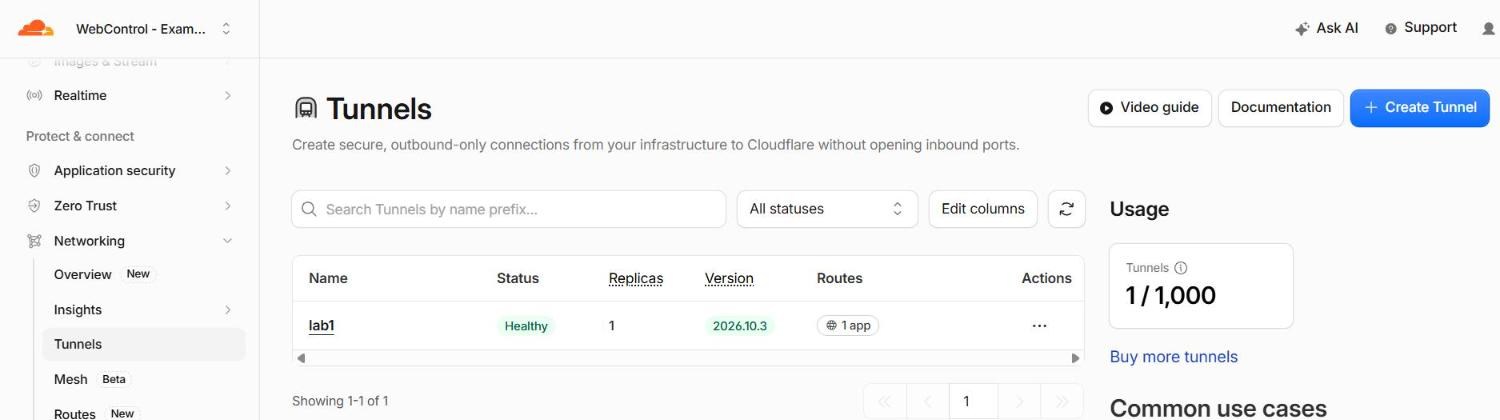
The trade-off is one more piece of software that has to stay running and up to date. If cloudflared stops, so does your website. For our public servers I prefer the firewall plus Authenticated Origin Pulls; for internal tools, Tunnel is hard to beat.
What about changing the IP?
If your IP has leaked, or it’s under attack, getting a new one helps. But only after the steps above, and after fixing whatever leaked it in the first place. Otherwise the new IP turns up in the same places within weeks.
Prove it works: test from the outside
This is my favourite part, and it has saved me more than once. Don’t assume the lockdown is working. Test it.
From a computer that isn’t on your trusted network, try to reach your site directly, bypassing Cloudflare. curl can do this with --resolve, which says “pretend this hostname points at this IP”:
curl -v --connect-timeout 10 \
  --resolve www.webcontrol-example.com:443:203.0.113.10 \
  https://www.webcontrol-example.com/
Swap in your own domain and server IP, then do it again for your IPv6 address (in square brackets, e.g. [2001:db8::10]).
Here’s that test against one of our own servers, from a machine outside its trusted network (hostname and server addresses swapped for our demo domain and documentation addresses):
$ curl -sS -o /dev/null -w "%{http_code}\n" --connect-timeout 10 \
    --resolve www.webcontrol-example.com:443:203.0.113.10 https://www.webcontrol-example.com/
curl: (28) Connection timed out after 10002 milliseconds
000

$ curl -sS -o /dev/null -w "%{http_code}\n" --connect-timeout 10 \
    --resolve "www.webcontrol-example.com:443:[2001:db8::10]" https://www.webcontrol-example.com/
curl: (28) Connection timed out after 10002 milliseconds
000

$ curl -sS -o /dev/null -w "%{http_code}\n" https://www.webcontrol-example.com/
200
Direct to the server, over IPv4 and IPv6: nothing. Through Cloudflare: the site loads.
- Timeout or connection refused: the firewall is doing its job. This is what you want.
- A TLS or certificate error: the firewall let you in, but Authenticated Origin Pulls stopped you. Better than nothing, but check the firewall.
- Your website loads: anyone can bypass Cloudflare. Fix it today.
Then make it permanent. If your monitoring tool lets you force the IP address for a check, set up a check that alerts when the origin answers, and treats a timeout as healthy. It’s a backwards way to think about monitoring, and that’s the point: it catches the day someone migrates the server and forgets the firewall, or turns the rules off “just to debug something” and never turns them back on.
Checklist
- Every DNS record that points at the server is proxied (orange cloud), or moved somewhere else.
- Firewall: port 443 only from Cloudflare’s IPv4 and IPv6 ranges, refreshed automatically. Port 80 closed.
- Authenticated Origin Pulls on, ideally per-hostname with your own certificate.
- SSL mode Full (strict).
- A catch-all server that rejects unknown hostnames.
- Email isn’t sent from the web server’s IP.
- A monitoring check that alerts if the origin ever answers directly.
Lock down the origin and your Cloudflare rules actually mean something. Once your login pages are behind a rule too (see Why your WordPress login page shouldn’t be public), you’ve closed off most of what bots go looking for.
Not sure whether your server can be reached directly? Get in touch and we’ll test it for you.