Here’s something that should make every WordPress site owner nervous: the overwhelming majority of WordPress security problems don’t come from WordPress itself. They come from plugins and themes.
Every plugin you install is extra code running on your server, written by someone else, that you’re trusting to be secure and kept up to date. The more plugins, the more chances for something to go wrong.
Our own clean-out
When we rebuilt the WebControl website this year, I went through every page and template to find out what the old site was actually using.
The old site had several big add-on plugin suites installed alongside Elementor: things like JetEngine, JetMenu and Element Pack Pro, plus extra theme add-ons. Each is a perfectly good product. But when I checked:
- The JetEngine and JetMenu settings were empty. Installed, licensed, updating, and doing nothing.
- Element Pack Pro was used for exactly one widget, on the Blog page, and that widget wasn’t even visible to visitors because of how the blog was set up.
- Everything else on the site was built with plain Elementor and Elementor Pro.
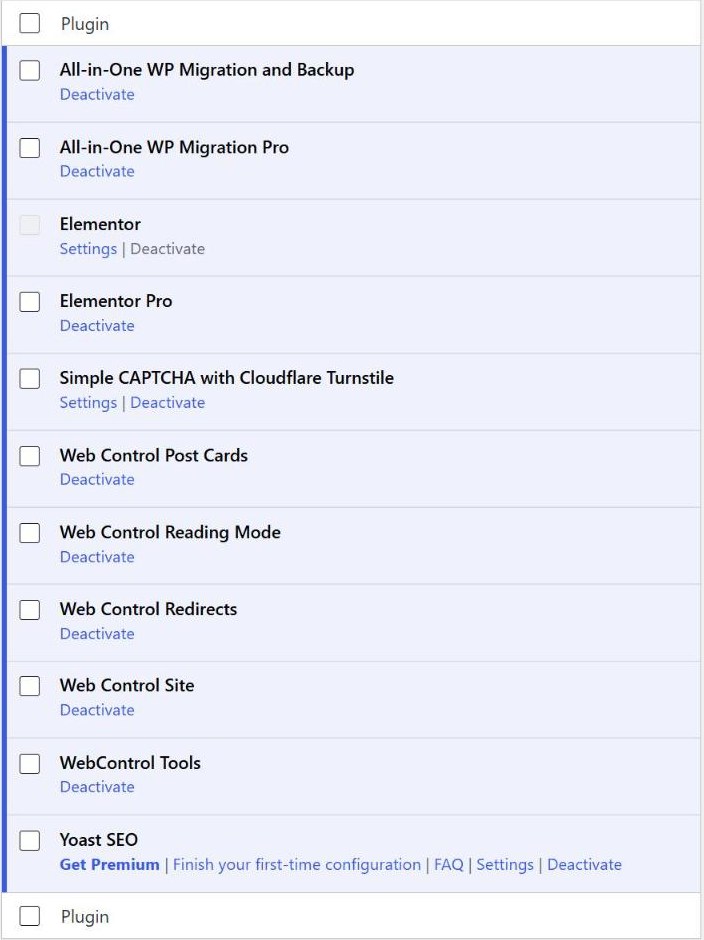
The rebuilt site now runs on Elementor and Elementor Pro, a backup plugin (with its Pro extension), a spam-protection plugin and an SEO plugin, plus five small plugins we wrote ourselves for things like the blog’s reading mode, redirects from old addresses and the free tools. Each of ours does one job, and we know exactly what’s in it. Same look, a fraction of the code.
Why fewer plugins is safer
- Smaller attack surface. Code that isn’t installed can’t be hacked. Even deactivated plugins can be a risk if their files are still on the server.
- Fewer updates to miss. Every plugin is another thing that needs updating promptly, forever.
- Less abandonment risk. Plugins get abandoned by their developers all the time. When that happens, nobody fixes the next security hole.
- Fewer licences. Premium plugins you’re not using are still costing you money every year.
- Faster site. Many plugins load scripts and styles on every page whether they’re needed or not.
- Fewer conflicts when it’s time to upgrade PHP or WordPress.
How to audit your own plugins
Go to Plugins in WordPress and, for every single one, ask:
- Do I know what this does? If nobody can explain why it’s there, that’s a red flag.
- Is it actually used? Check whether its features appear anywhere on the site. Page builders’ add-on packs are the usual suspects.
- Is it maintained? On its WordPress.org page, check “Last updated”. More than a year with no update is a warning sign.
- Does WordPress already do this? A lot of older “must-have” plugins duplicate features now built in to WordPress or your page builder.
- Is it deactivated? Then delete it. Don’t leave deactivated plugins lying around.
Important: do this on a staging copy first, and take a backup. Removing a plugin a page depends on can leave gaps or broken layouts.
What a lean site looks like
There’s no magic number, but for a typical small business brochure site I’d expect something like:
- A page builder (if you use one)
- A backup / migration plugin
- Form spam protection, such as Cloudflare Turnstile
- A reliable way to send email, such as an SMTP plugin or your host’s mail service
- An SEO plugin, if you’re actively working on SEO
Things like caching and firewall plugins can often be handled better at the server or by Cloudflare, outside WordPress altogether.
Want a second pair of eyes on your plugin list? Get in touch. Plugin audits are something we’re very happy to do.