Your website is crawling, or down. Customers are calling. Your hosting company says “you’re getting a lot of traffic”. It might be an attack. It might be something else entirely. Either way, what you do in the first hour matters more than anything you do after it.
Here’s the order I’d work in. Print it out and stick it somewhere before you need it.
Minute 0: start recording your screen
Before you click anything, start a screen recording. You’ll be stressed, you’ll be jumping between tabs, and an hour from now you won’t remember what you saw, what you changed or in what order. A recording lets you go back over it afterwards, calmly, and it shows your developer or host exactly what happened instead of “it was broken”.
Windows and Mac both have a screen recorder built in. Here’s how to use each one, and where it puts the file:
- Windows 11, Snipping Tool: press Win + Shift + R, drag a box around what you want to record (drag across the whole screen for everything), then click Start. Stop it with the red button on the Snipping Tool bar. The video is saved as an MP4 in Videos → Screen Recordings.
- Mac: press Cmd + Shift + 5, choose Record Entire Screen or Record Selected Portion, then Record. Stop it with the stop button in the menu bar, or Cmd + Control + Esc. Recordings land on your Desktop unless you’ve changed it under Options → Save to.
- None of those? Take photos of the screen with your phone. It isn’t pretty, but it works.
If you’ve never used your recorder, the middle of an attack is a bad time to learn. Skip ahead to try it once before you need it, ideally today.
If you can’t record, take screenshots instead: one of every screen that matters, and one before and after every change. Either way, keep the clock in shot or rely on the file timestamps. That turns your recording into a timeline without any extra work.
Be careful what ends up in it. A recording captures everything on your screen: passwords as you type them, password manager pop-ups, two-factor codes, API tokens you create, customer details, other tabs and notifications. Pause the recording while you log in or create tokens. Where your tool lets you, record just the browser window, not the whole desktop. Treat the files as sensitive, and never send the raw recording to anyone. Crop or blur what you need to share.
Minute 0–5: confirm what’s actually happening
Don’t start changing settings yet. First, find out what “down” means:
- Is it just you? Try from a phone on mobile data, not your office Wi-Fi.
- What do you see? A Cloudflare error page (5xx with a Cloudflare logo), a block page, a blank page, or a slow page? Screenshot it, including the Ray ID.
- Is Cloudflare itself having a problem? Check cloudflarestatus.com. If it’s a Cloudflare outage, there’s nothing to fix on your end, and changing settings will only make things harder later.
Minute 5–15: look at the traffic
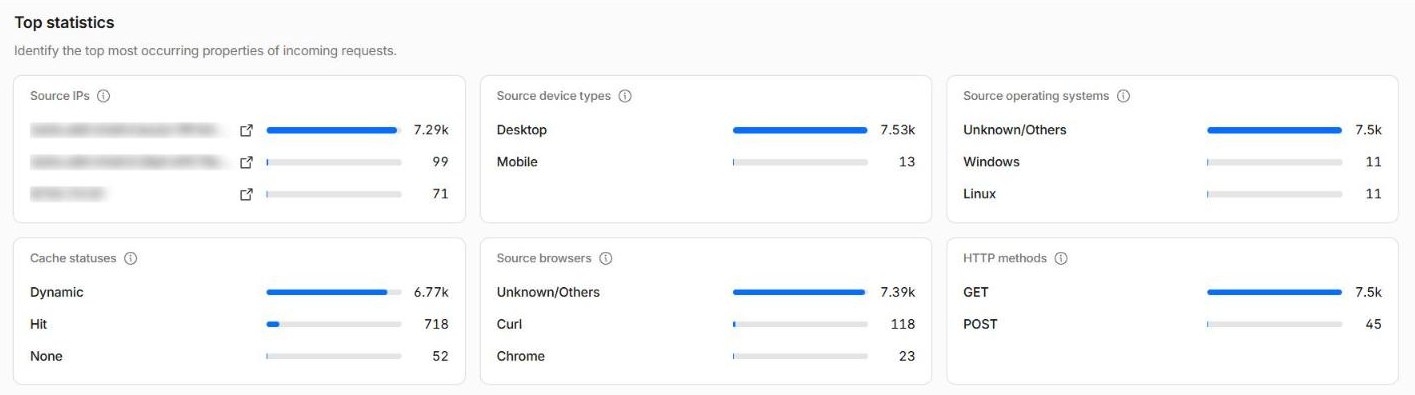
Open your domain in Cloudflare and look at Security → Analytics (the Traffic and Events tabs) for the last hour. You’re looking for something out of the ordinary:
- a huge spike in requests compared with a normal day
- lots of requests to one page (often login, search, or a form)
- lots of requests from one country, one network (ASN) or one user agent
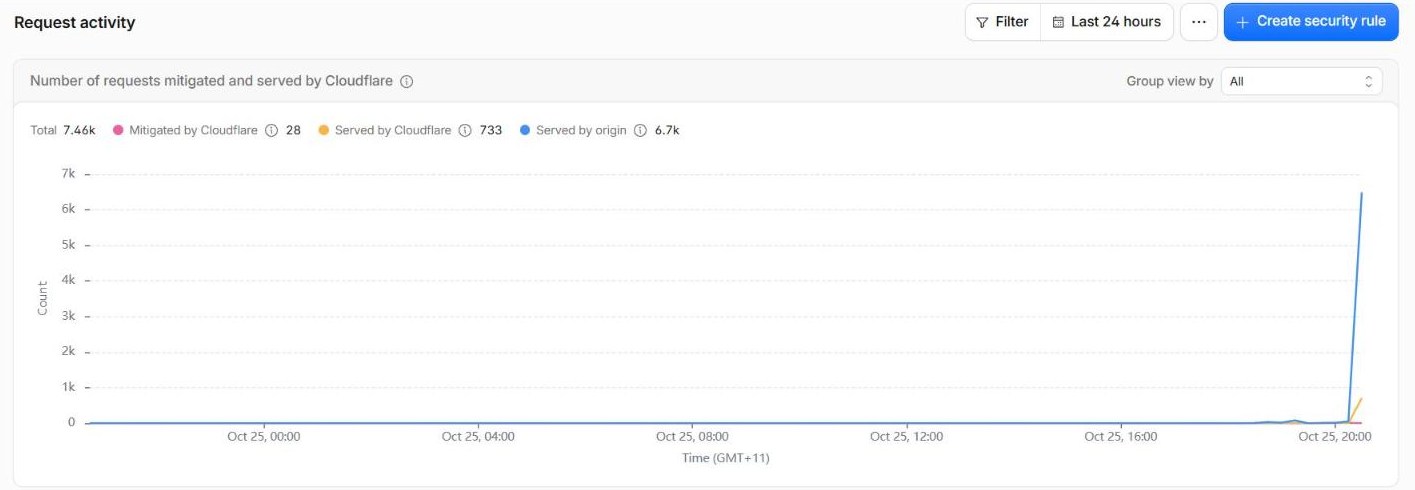
Screenshot the graphs and the top countries, paths and networks while you’re there. Once the attack stops they’ll look very different, and you’ll want the “during” picture.
If traffic is normal but the site is still down, it probably isn’t an attack. It’s more likely the server, a plugin update, a full disk or an expired certificate. Call your developer or host instead of fiddling with Cloudflare.
Minute 15–30: turn the dial up, in steps
If it is unusual traffic, start with the most targeted response and only escalate if you need to.
- Block or challenge what’s obvious. If it’s all hitting one path, add a custom rule with a Managed Challenge for that path. If it’s one country or network you don’t serve, challenge that. (See Block, challenge or skip? for which action to choose.)
- Add a rate limit to the page being hammered, if you have a rule spare. (See rate limiting in plain English.)
- Turn on Under Attack mode if nothing else works. It’s under Quick Actions on your domain’s overview page. Every visitor gets a short check before they reach your site. Cloudflare describes it as a last resort, and it is. It will annoy real visitors and it breaks things that can’t run a browser check, like apps and webhooks. Use it to buy time, not as a fix.
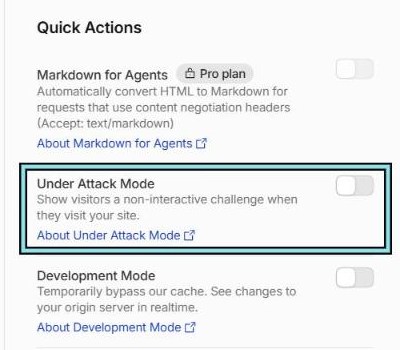
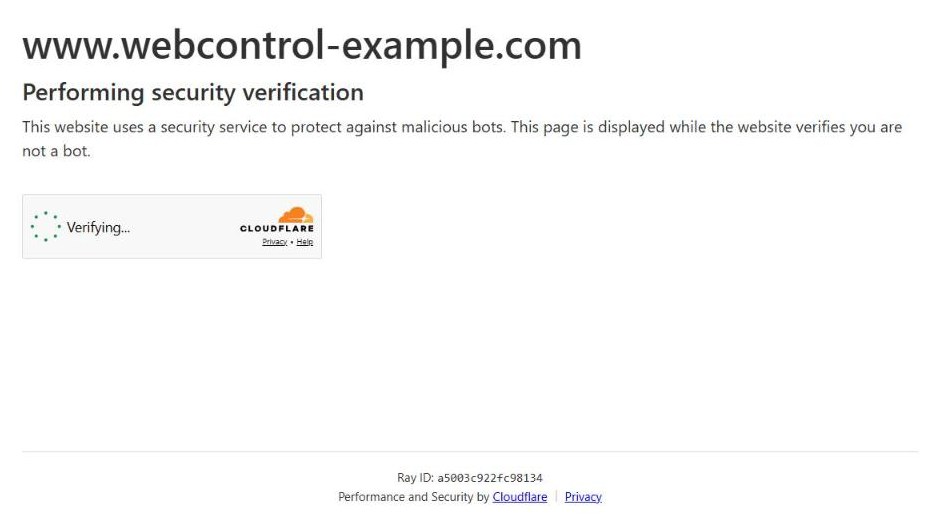
If you can, scope Under Attack mode to just the affected part of the site with a configuration rule, rather than the whole domain.
Before each change, screenshot the setting as it was. If a change makes things worse, that’s how you put it back.
Minute 30–45: check your origin isn’t exposed
If the attack is still hurting even with Cloudflare turned up, there’s a good chance it’s going around Cloudflare, straight to your server’s IP address. Cloudflare can’t filter traffic it never sees.
Ask your host whether the traffic is coming from Cloudflare’s IP ranges or from elsewhere. If it’s elsewhere, your server needs to be locked down to accept web traffic from Cloudflare only. That’s not a five-minute job in the middle of an attack, but your host can often block the worst of it at their firewall. Long term, read How to lock down your origin server behind Cloudflare.
Minute 45–60: communicate, and write things down
- Tell your customers if the site is part of how they reach you. A line on your social channels or an email: “Our website’s having trouble, call us on…”.
- Write up the timeline: what you saw, what you changed, and when. Your recording and screenshots do most of the work. Do it while it’s fresh. You’ll need it later, and you won’t remember.
- Get help if you’re out of your depth. The earlier, the better.
Afterwards
Once things are calm:
- Turn Under Attack mode off. It’s easy to forget, and it’ll keep annoying customers.
- Review the emergency rules you added. Keep the useful ones, give them proper names (I use
action | scope | what it matches), and delete the rest. - Watch the recording back. It’s often the first time you’ll see the hour clearly, and it’s the best way to spot what slowed you down.
- Look after the files. Keep what you need for your notes, your insurer, or a report to ReportCyber. Store them somewhere private and delete the rest. If a password or token is visible anywhere in them, change it.
- Ask what would have made the first hour easier, and fix that now.
Do the prep now
Most of the first hour is spent finding logins and working out who can change what. Make sure at least two people can log in to Cloudflare, know where Under Attack mode is, have tried a screen recording once (see below), and have this page handy. If you haven’t already, go through the five accounts that can take your business offline.
Practise the screen recording
Do a two-minute test run on the computer you’d actually use. You’ll learn more from it than from reading the steps above:
- Record something. Start a recording, open a couple of tabs, log in to nothing, and stop it.
- Find the file. Go to the folder listed above and open it. If it takes you more than a minute to find today, it’ll take a lot longer when you’re stressed. (On Windows, the Screen Recordings folder doesn’t even exist until your first recording.)
- Play it back. Can you read the text? If you have two screens, did it record the one you meant?
- Learn to pause and stop. You’ll want to pause while you log in. If your recorder has no pause button (the Mac one doesn’t), stop it and start a new recording afterwards.
- Check where it syncs. If your Videos folder or Desktop backs up to OneDrive or iCloud, the recording goes to the cloud too, passwords and all. Decide whether that’s OK, or change where it saves.
- Check the space. An hour of full-screen video can run to a few gigabytes. Make sure there’s room.
- Write it down. Add the shortcut and the folder to your printed copy of this page.
Under attack right now? Call us. For urgent problems, the phone is the fastest way in.