Updated October 2026. Rewritten with real examples from our own setup, and corrected: an example in the original said you needed Enterprise to protect staging sites with a list. You don’t.
I still think Cloudflare Lists are one of the most underused features in Cloudflare. If you look after more than one domain, they save you from editing the same rule in ten places, and from the one place you forgot.
What is a List?
A List is a named set of values, such as IP addresses, that you can use inside a rule. You refer to it in a rule expression with a $ in front of its name:
ip.src in $trusted_ipsThe important part is that Lists belong to your account, not to a single domain. Every domain in the account can use the same List, in as many rules as you like. Change the List once and every rule that uses it, on every domain, picks up the change straight away.
Each domain still needs its own rule. The List is the shared part.
Which Lists you get on each plan
As at October 2026, from Cloudflare’s documentation:
| Plan | Custom Lists | Items (across all Lists) | List types |
|---|---|---|---|
| Free | 1 | 10,000 | IP |
| Pro | 10 | 10,000 | IP |
| Business | 10 | 10,000 | IP |
| Enterprise | 1,000 | 500,000 | IP, hostname, ASN, plus Cloudflare’s managed IP Lists |
Three things worth knowing:
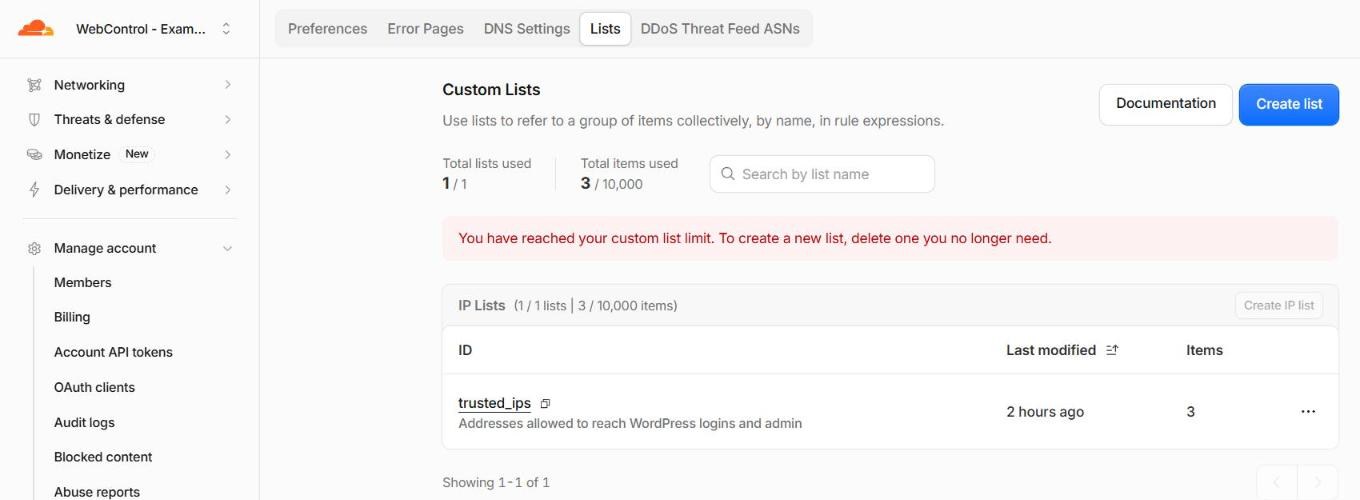
- On Free, one really means one. Create your first List and the dashboard tells you you’ve reached the limit.
- Your quota comes from the highest plan in the account. If even one of your domains is on Pro, the whole account gets 10 Lists.
- Bulk Redirect Lists are separate, with their own quota, and they’re available on every plan (5 Lists and 10,000 redirects on Free). More on those below.
Limits do change, so check Cloudflare’s Lists documentation before you plan around them.
Example 1: Lock the login page to trusted IPs
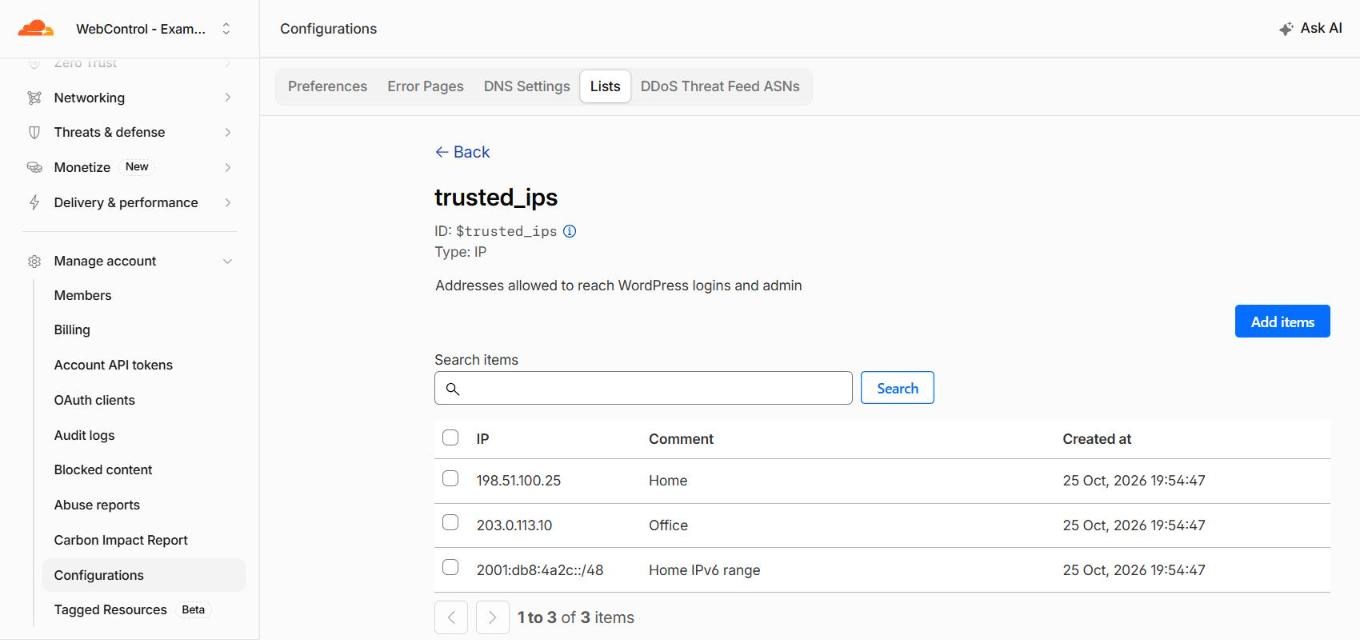
This is the List I’d create first. Ours is called trusted_ips and holds our office and home addresses. A single WAF rule on each domain then blocks wp-login.php and /wp-admin for everyone not on the List:
(http.request.uri.path eq "/wp-login.php"
  or (starts_with(http.request.uri.path, "/wp-admin")
      and http.request.uri.path ne "/wp-admin/admin-ajax.php"))
and not ip.src in $trusted_ips
(Keep that admin-ajax.php exception. I explain why in Why your WordPress login page shouldn’t be public.)
The payoff is when an address changes. Home internet providers do change your IP from time to time. With a List, I update one entry and every site follows. Without it, I’d be editing a rule on every domain, and probably locked out of one of them while I did it.
Add your IPv6 range, not just your IPv4 address. Most home and office connections now have IPv6, and your computer will often prefer it. Your provider usually gives you a whole range (commonly a /48 or /56), and your devices pick new addresses inside it regularly, so add the range, not the single address your computer has today. Lists accept IPv6 ranges from /12 to /128.
Example 2: Keep staging sites private
The original version of this post said this needed an Enterprise hostname List. It doesn’t. A normal IP List and one custom rule per domain does the job on any plan:
http.host eq "staging.webcontrol-example.com" and not ip.src in $trusted_ipsSet the action to Block. Your staging site disappears for everyone else, including search engines, so half-finished pages never end up in Google. Our own staging sites are locked to our own addresses in the same way. If you want to know why staging sites are worth having in the first place, see Staging sites: test changes without breaking your live site.
Example 3: Block a known troublemaker everywhere
If the same addresses keep hammering your sites, put them in a List such as blocked_ips and add a block rule on each domain. Add an address once and it’s blocked everywhere.
Use this sparingly. Attackers move around, and a block List that nobody tidies up slowly fills with addresses that now belong to someone innocent. For general bot traffic, Cloudflare’s managed rules and bot protection do a better job than a hand-made List.
Example 4: Redirect alias domains in bulk
If you own spare domains (misspellings, the .com.au and .au versions, an old brand name), a Bulk Redirect List can send them all to your main site with a single rule. Each line is a “from” and “to” URL, and you can use it on the Free plan. I cover alias domains in more detail in Domain hygiene: alias domains, redirects and stopping typo-squatters.
Managing your Lists
You’ll find them in the dashboard under Manage account → Configurations → Lists.
- Pick the name carefully. Names can only use lowercase letters, numbers and underscores (up to 50 characters), and you can’t rename a List or change its type later. A simple pattern such as
trusted_ips,blocked_ipsoroffice_ipsstays readable in rules. - Use the description. Each List has a description of up to 500 characters. I use it to note what the List is for and which rules use it, so future me doesn’t delete something important.
- Note what each entry is. When you upload a List as a CSV file, each line can have a description after a comma (
203.0.113.10,Office). Six months later you’ll want to know whose address it is. In the dashboard it’s the Comment next to each item. - Review them. Put a reminder in the calendar to check trusted Lists when staff leave or offices move. A trusted address you’ve forgotten about is a hole in your security.
Final thoughts
Start with one List: trusted_ips. Use it to lock down your login page and your staging site, and the next time your home IP changes, you’ll see why I like them so much.
Just remember that Lists only protect traffic that comes through Cloudflare. Make sure your server can’t be reached around it: see How to lock down your origin server behind Cloudflare.
Want a hand setting up Lists and rules across your domains? Get in touch.