Quick question: what version of PHP is your website running on?
If you don’t know, you’re not alone. Most business owners have never heard of PHP, let alone checked their version. But after PHP2Shell, it matters a lot.
What is PHP, and why does the version matter?
PHP is the programming language that runs WordPress (and a huge chunk of the rest of the web). It lives on your hosting server, underneath your website. You never see it, but every page load goes through it.
Like any software, each version of PHP only gets security fixes for a limited time. Once a version reaches end of life (EOL), the PHP project stops fixing it. New security holes are found, published and exploited, and nobody patches them.
What’s supported right now?
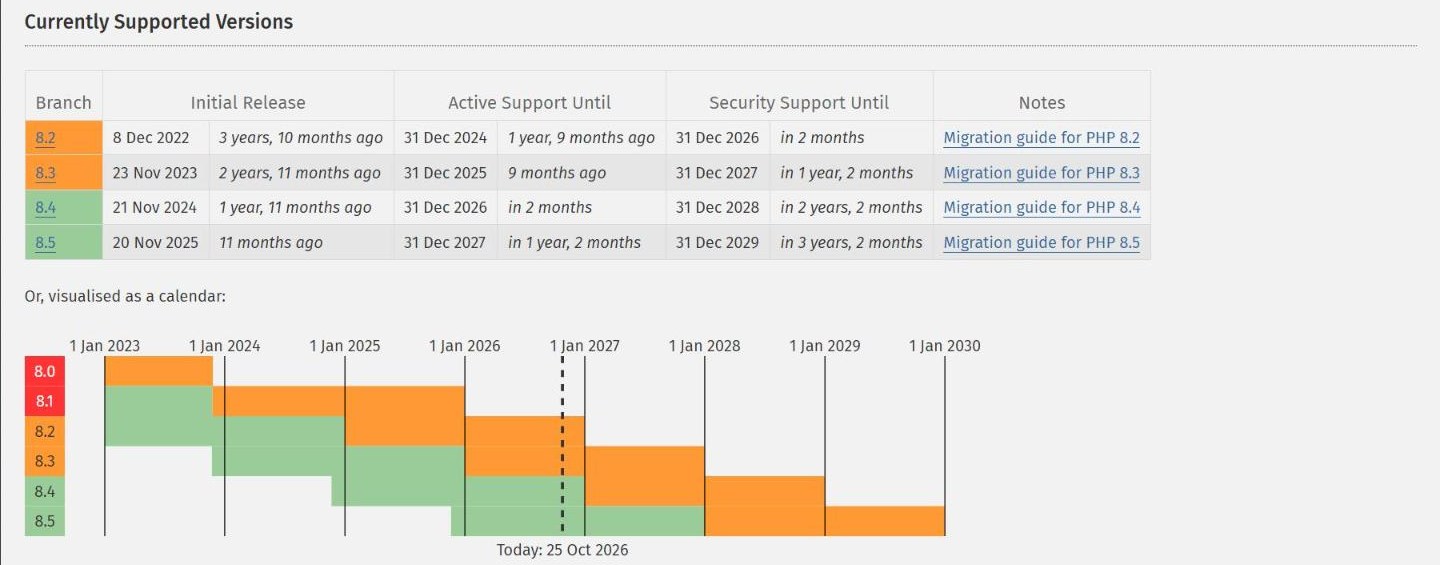
As of October 2026, the PHP project issues official security releases for:
- PHP 8.5
- PHP 8.4
- PHP 8.3
- PHP 8.2, but its security support ends on 31 December 2026, so plan to move off it now.
Anything older (8.1, 8.0, 7.x and, yes, we still see PHP 5 out there) is end of life. When PHP2Shell was fixed, 8.2 and newer got proper releases. 7.4 to 8.1 got source code patches only, which most shared hosts won’t build. Older than that got nothing.
For the official dates, check php.net/supported-versions.
How to check your version
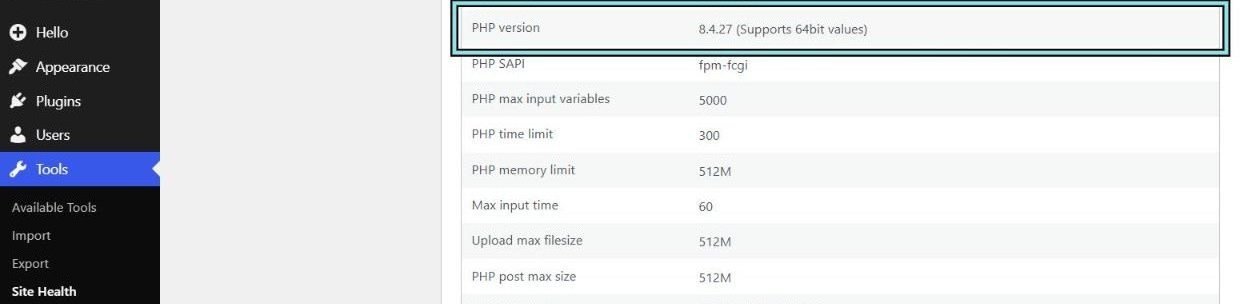
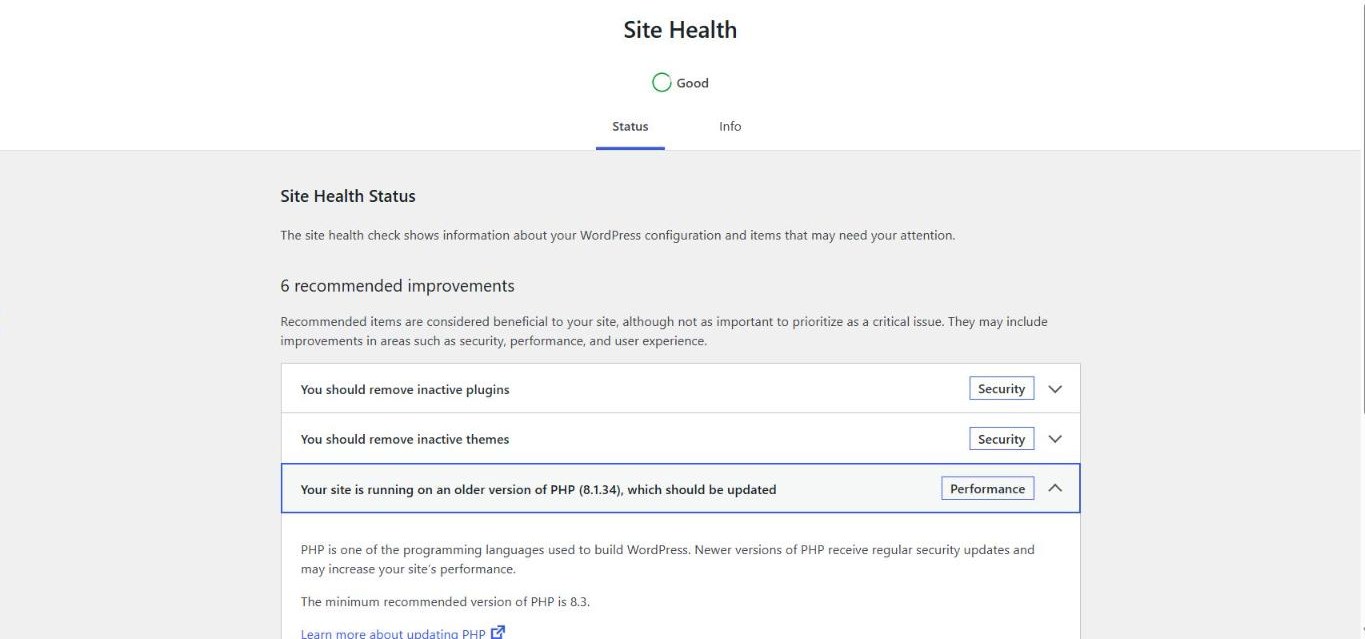
In WordPress: go to Tools → Site Health → Info → Server and look for PHP version. Site Health also mentions it on its Status tab if your version is outdated, but more quietly than you’d expect (more on that below).
Don’t rely on Site Health to raise the alarm, though. We switched our lab site to PHP 8.1, which stopped getting security fixes at the end of 2025, and Site Health still rated the site Good. The old PHP showed up as one of six “recommended improvements”, filed under Performance, not security:
In your hosting control panel: cPanel, Plesk and most others have a “PHP version” or “Select PHP version” page.
A catch: Linux distributions
If you’re on a VPS or your host uses a Linux distribution’s own PHP packages (Debian, Ubuntu, Red Hat, AlmaLinux and so on), the distribution may keep patching an older version for longer than the PHP project does. In that case the version number alone doesn’t tell you whether you’re patched. You need to know that security updates are actually being installed.
On our own servers we use Debian’s PHP packages. When the PHP2Shell fix came out, Debian had patched packages ready on the same day, and all our servers were updated by 9am the next morning.
Questions to ask your host
- What PHP version is my site running?
- Is that version still getting security updates, and from whom: the PHP project, or your Linux distribution?
- How quickly are critical PHP security updates installed? Hours? Days? “When we get to it”?
- Can I switch to a newer PHP version myself, and do you have a staging copy I can test it on first?
If the answers are vague, it might be time to move.
“But upgrading might break my site!”
It might. Old plugins and themes sometimes don’t like newer PHP. That’s a real risk, but it’s a much smaller one than running an unpatched server. The safe way to do it:
- Take a full backup (and check it can actually be restored; see Backups that actually work).
- Update WordPress, your theme and all plugins first.
- Test the new PHP version on a staging copy of your site.
- Click through the important pages and submit your forms.
- Switch the live site over, and test again.
On a WordPress site, if a plugin breaks on a supported PHP version, that usually means the plugin is no longer maintained, and that’s a security problem of its own. Replace it.
When the app itself is stuck on old PHP
Everything above assumes your site is WordPress, or something like it, where the software keeps up with PHP and you just need to keep it updated. Not every PHP app works that way.
Plenty of businesses run PHP apps that were built or installed years ago and then left alone: a bug tracker, a booking system, a customer portal, an intranet, something a developer built in-house. Each version of an app like that only works with a certain range of PHP versions. If you move the server to a newer PHP and leave the app where it is, it can break. Sometimes you get an error page. Sometimes it’s worse: a report quietly shows the wrong numbers, or a form that used to save no longer does.
So for these apps, upgrading PHP really means upgrading the app first, and that’s rarely quick:
- You may be several major versions behind, with database changes at every step.
- Any custom changes made to the old version have to be found, then redone or dropped.
- Add-ons the app relied on may not exist for the new version.
- Someone has to test it properly, and the people who know how it’s meant to work are usually the people using it every day.
Plan for days or weeks of work, not an afternoon, and budget for it like any other project. The longer an app is left behind, the bigger the jump gets.
Your real options are:
- Upgrade the app to a current version that runs on supported PHP.
- Replace it with something that is maintained, if upgrading costs more than it’s worth.
- Lock it down while you do one of the first two (more on that below).
“Leave it running as it is” isn’t on the list. An old app on old PHP has two sets of known holes: the app’s and PHP’s.
As a stopgap, the Linux distribution point above can buy you time: an older distribution release may still be patching the older PHP version your app needs. But check when that release’s own support ends, and treat that date as a deadline, not a solution.
“It’s behind Cloudflare, so it’s safe.” Not on its own.
We hear this a lot. Putting an old app behind Cloudflare is a good start: the WAF can block a lot of known attacks before they reach your server. But Cloudflare only protects traffic that goes through Cloudflare.
Your server still has its own IP address. If attackers can find that address, and your server will answer anyone who connects to it, they don’t need to go through Cloudflare at all. They connect straight to your server, the WAF never sees the request, and they’re talking directly to that unpatched PHP.
Finding a server’s real IP is easier than most people think. The common ways it leaks:
- DNS history. If the site ever had a grey-cloud (DNS only) record, or ran without Cloudflare before, DNS history sites will still have the old IP on record.
- Other records on the same server. A
mail.,ftp.orcpanel.record that isn’t proxied points straight at the same box. See Orange cloud vs grey cloud. - Certificates and scanners. Every public certificate is logged, and some services scan the whole internet and record which IP serves which certificate and which page. Search for your domain and the IP comes up.
- The app itself. Emails sent from the server can carry its IP in the headers, and anything the app fetches from the internet (updates, webhooks, images) shows the IP to whoever is on the other end.
And attackers do look. Automated tools try these tricks against sites behind Cloudflare, because an old app with a reachable server is exactly what they’re hoping to find.
The fix is to make your server refuse anything that didn’t come through Cloudflare:
- Firewall the server so it only accepts web traffic from Cloudflare’s IP ranges.
- Turn on Authenticated Origin Pulls, so your server only answers requests that present a certificate from Cloudflare. Use your own certificate rather than Cloudflare’s shared one, so the request has to come through your Cloudflare account. See Full (strict) SSL and Authenticated Origin Pulls.
- Or use a tunnel, where the server connects out to Cloudflare and has no open inbound web ports at all.
- If the IP has already leaked, lock it down anyway, and think about changing it. Old records don’t go away.
We go through each of these step by step in How to lock down your origin server behind Cloudflare.
One more question worth asking: does this app need to be public at all? A lot of these old apps are only used by staff. If that’s the case, put a login in front of the app (Cloudflare Access, a VPN or an IP allowlist) so strangers never reach it. Then the old PHP is only exposed to people you already trust.
Locking it down is how you buy time to do the upgrade properly. It’s not a reason to stop planning it.
Need help checking your PHP version, upgrading, or locking down an old app? Get in touch.